Settings
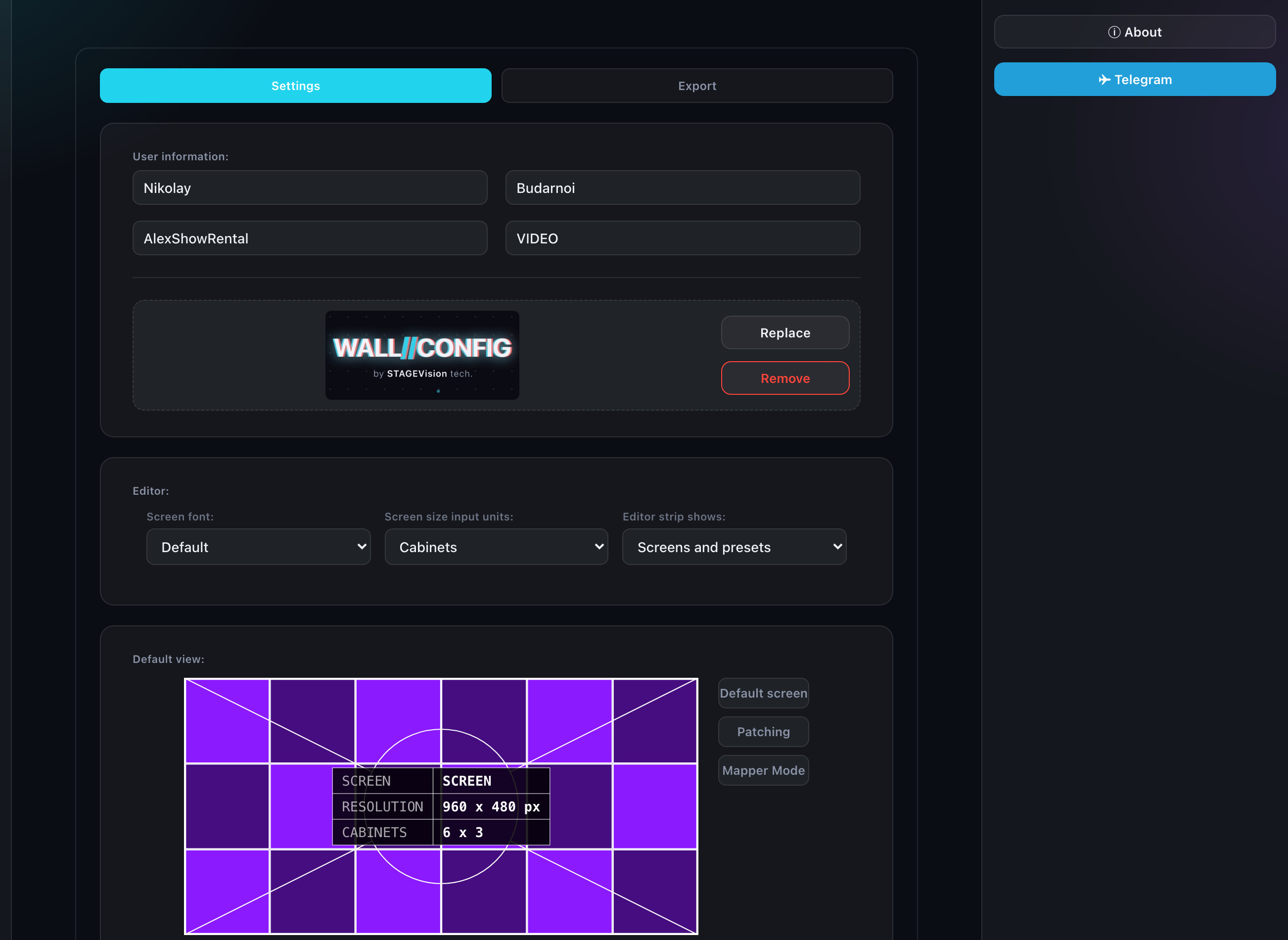
This is where everything the application does "by itself" is set: whose name appears on documents, how a new screen is born, what step snapping works at. Mistakes are cheap — there is a restore at the very bottom.
User information
First name, last name, company, job title and a logo. This data is placed into specifications and the PDF title block as the author details.
There is no "Save" button here — fields save themselves when you move to the next one or pause while typing. A toast confirms it.
Editor
Three settings that apply the moment you pick them — there is nothing to confirm:
| Setting | What it does |
|---|---|
| Screen font | The typeface of screen captions. The list comes from the fonts the administrator uploaded |
| Screen size input units | How you enter the size of a new screen in the "Add screen" form: in cabinets or in metres |
| Editor strip shows | What the editor card strip holds: screens and presets, screens only, or presets only |
The last one controls the "Screens | Presets" switch beside the strip: the two narrow values remove it entirely and keep the strip on one view. On presets themselves — "Presets".
The number of displays in the editor lives here too: how many "Display" slots to show you. The list is capped by your plan, and with a ceiling of one slot the setting does not appear at all — there is nothing to switch.
Below are your personal tool switches. They answer "do I need this", not "am I allowed": a switched-off tool simply stops taking up room in the interface.
| Switch | What it removes |
|---|---|
| Alignment | The block for aligning and mirroring selected screens |
| Patch | Patch mode entirely — including patching in the export |
| Power | Power patching inside patch mode |
The Power switch is nested under Patch: power lives inside that mode, so with Patch off the Power row is simply not shown. A switch your plan does not include is absent altogether — there would be nothing to turn on.

The "Restore" button in the "Default view" block does not touch the font: it belongs to the editor, not to how the screen looks. To bring back the stock typeface, pick "Default" in the list.
Default view
One block with buttons to the right of the preview that switch what you are configuring. All of them answer the same question: how the things drawn on the canvas look.
| Button | What it configures |
|---|---|
| Screen | How a new screen looks: outlines, layers and labels |
| Patching | How routes look in patch mode |
| Mapper Mode | The plates carrying card, port and cabinet numbers |
| Power | How the power lines look in Power mode |
Power has its own route styling — line, arrows, circle, markers, outline, number, marker shape — and it is not tied to the data-patching set. That is the point: the two views are often looked at in turn on one project, and telling them apart at a glance (making power thicker and yellow, say) is only possible while the sets stay independent. There are no Mapper plates in the Power set: power has neither cards nor ports, so there would be nothing to print in them.
Below the view settings Power has a separate card with two fields — Calculation mode and Cabinet power. These are not styling but calculation defaults: every new project opens with them. What they mean is covered in power patching.
An already saved project is not touched by these defaults — it is calculated by the settings stored in it. Otherwise an edit here would quietly change the numbers in other projects every time they were opened.
Screen has the same three tabs as a screen's properties in the editor: Screen for outlines, Layer and Label for the selected layers' parameters. With several layers or labels the tab captions turn plural. What each field means is covered in "Layers" and "Colors, outlines, monochrome".
Editing a layer's parameters here affects new screens only — it does not touch your layer library. Nor the other way round: the set of available types comes from "Patterns", while what to do with them on a new screen is decided here.
Screen settings affect new screens only and leave placed ones alone. The modes themselves are covered in "Patching (Patch Mode)".
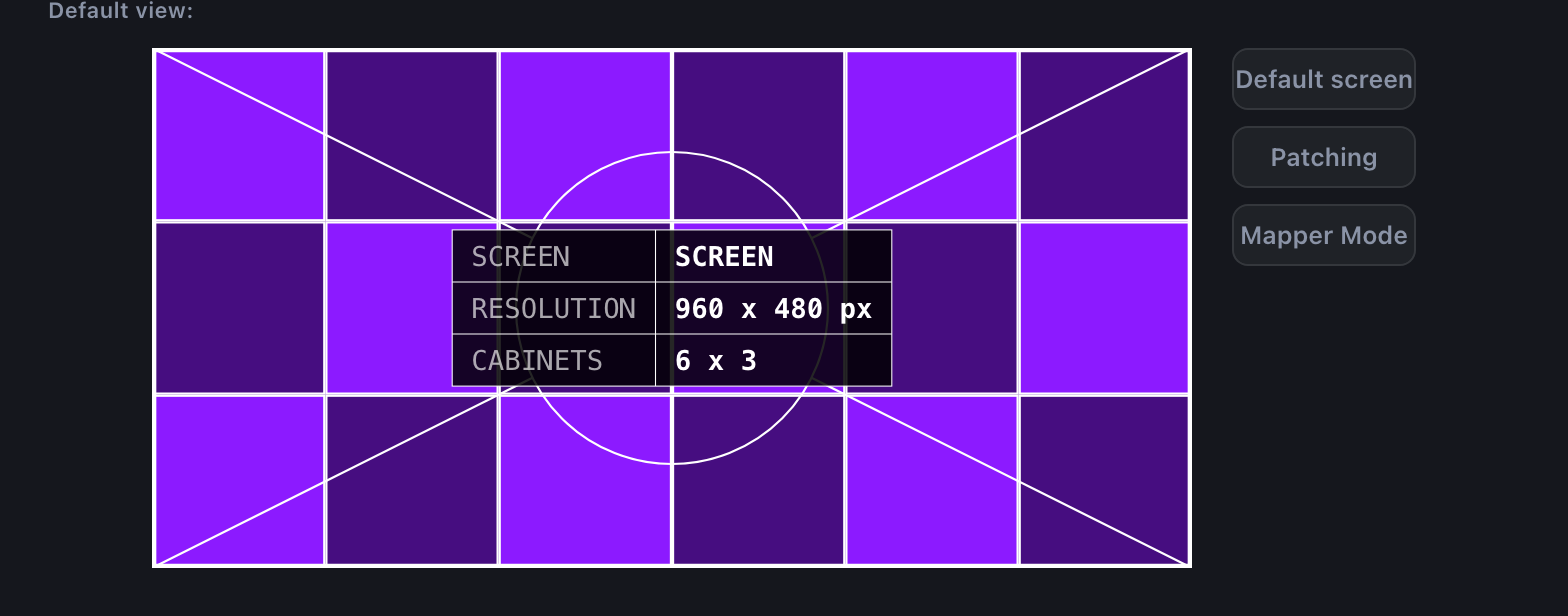
Any of the buttons opens its view for editing in the right column straight away — there is no separate "Edit" button. Clicking the same button again closes the column, and so does a click anywhere else on the tab. Until you click one, the right column stays closed and the preview in the centre shows the current settings.
Snapping
Two columns — two ways a screen lands in place. In the editor they are mutually exclusive: while the grid is on, screens snap to its nodes and are not pulled towards their neighbours.
| Column | What it configures |
|---|---|
| Snap grid | The look and step of the grid screens snap to: dots, crosses or lines, size and colour |
| Snap to screens | Guides — the lines that flash while dragging when a screen lines up edge-to-edge or centre-to-centre with a neighbour |
How this behaves while dragging is covered in "Working on the canvas".
Guides have three settings: whether to show them, the line colour and its thickness. The switch hides the lines only — screens keep snapping to each other.
The grid is turned on and off from the editor toolbar, not here: this is where its look is configured.
Restoring settings
The button at the very bottom returns all your settings to what the administrator configured. Presets, layers and labels are restored separately, in "Patterns".
A restore button is disabled while there is nothing to restore: the section already matches the server.
Restoring cannot be undone and reloads the page so you see the server's real state. The button asks for confirmation.