Export mode: how it works
Export is a separate mode of the editor, not a save dialog. In it you pick a format, configure it, and see in the center exactly what will go into the file. This page covers the common rules; each format has a page of its own.
Entering and leaving
The "Export" button at the bottom of the left panel switches the editor into export mode — its caption changes to "← To editor", and clicking again returns.
In export mode the left panel shows the list of formats, the right one the settings of the chosen format, and the bottom holds the "Export" button.
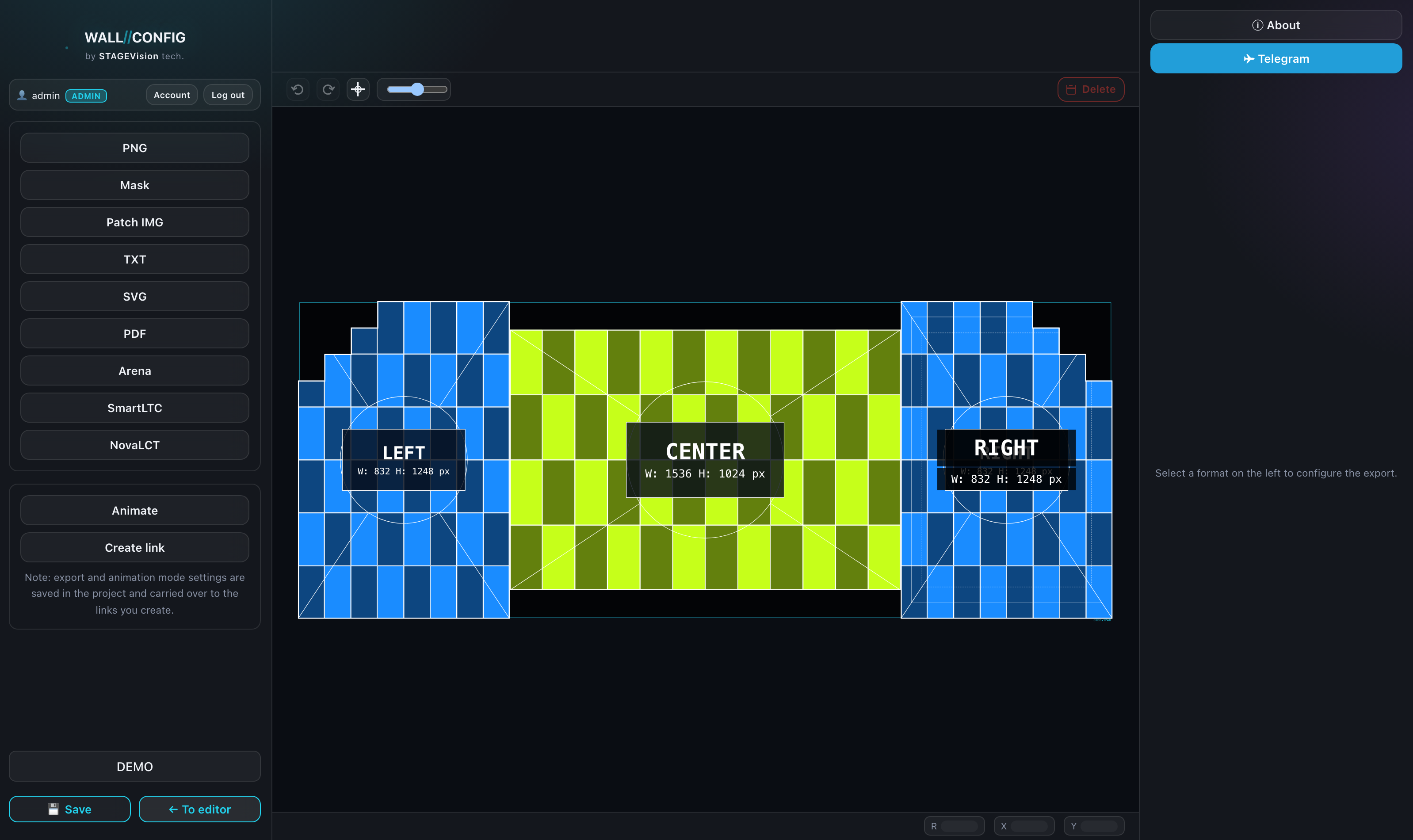
The preview is the real result
The center shows not an approximation but the actual output of the chosen format:
| Format | What is in the center |
|---|---|
| PNG, Patch IMG, SmartLTC, NovaLCT | the live editor canvas in read-only mode |
| Mask | a raster image of the mask |
| TXT | an editable text area |
| SVG | the vector itself, inline in the page |
| a page flipbook of the document | |
| Public link | the link page in a frame |
Export shares the canvas with the editor. That is why the toolbar is locked in export mode — apart from zoom and the "fit" button, for the formats drawn on the live canvas.
The format list
The buttons come in a fixed order. A format not available to you does not appear at all — it is not a greyed-out button but an absent one.
| Button | What it is | Page |
|---|---|---|
| PNG | A picture of the wall | PNG |
| Mask | A black-and-white silhouette mask | Mask |
| Patch IMG | A patching picture | Patch IMG |
| Create link | A public page for the project | Public links |
| TXT | A spec sheet | TXT |
| SVG | Vector output | SVG |
| A multi-page document | ||
| Arena | A screensetup for Resolume | Resolume |
| SmartLTC | A .srcx project for Novastar | SmartLTC |
| NovaLCT | A .scr file for the card | NovaLCT |
"Create link" sits in a separate block below the format list — it is not a file export: the button works with the saved project and produces its public page.
A note sits under it: export settings are saved into the project and carried over into the links you create.
Several displays and ZIP
If a project has more than one non-empty display, clicking "Export" opens a chooser: which ones to write out.
- Tick several and a "Pack into ZIP" switch appears, delivering the files as one archive.
- With only one non-empty display the chooser is skipped and the file downloads straight away.
Some formats work per display (PNG, Mask, SVG, Patch IMG), others cover the whole project (TXT, PDF, SmartLTC, Resolume) — those have a checklist in their settings instead of a display switcher. NovaLCT works its own way: one file per card, and with several cards the chooser asks for cards rather than displays.
File names
A name is assembled from the project name and the name of the display or card. So a meaningful project name saves time: you will not be renaming files by hand before sending them.
What a guest gets
A guest exports files like everyone else — only saving projects and public links are restricted. Which formats your group has is set by an administrator.