Presets
A preset is a ready-made bundle of screen appearance settings: layers, outlines and colour at once. In the editor it is applied in a single click; here you define what is in it.
On applying presets — "Presets" in the Editor section.
Where it lives
Account → "Patterns" → the first switch button, "Presets". Next to "Layers" and "Labels", which are about individual layer types — presets are about their combinations.
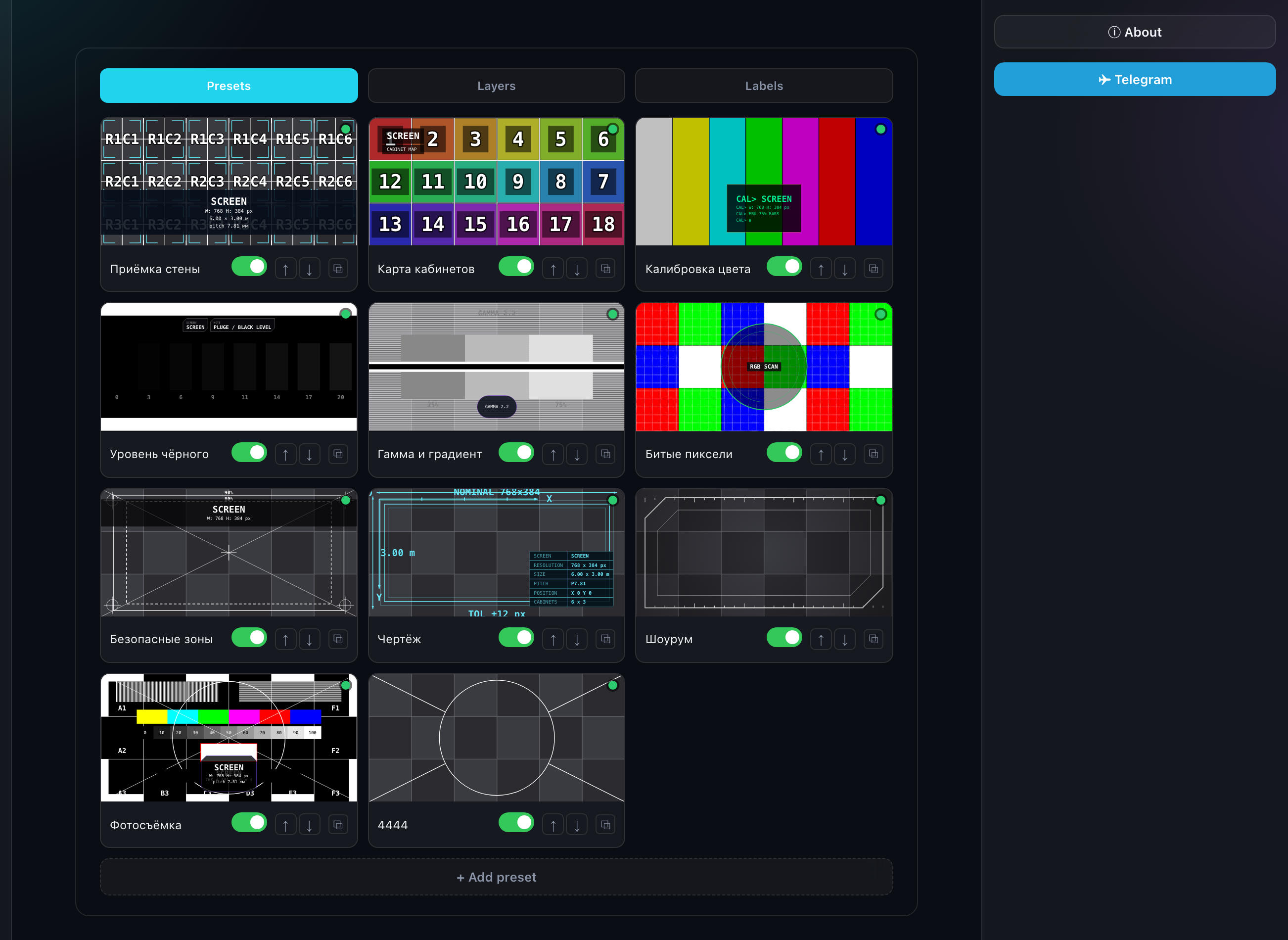
Two levels
| Level | Set by | What it means |
|---|---|---|
| Server | The administrator | A preset for every user |
| Personal | You, in this section | For you only |
Only what you actually changed is saved. The rest keeps following the administrator: when they edit a preset, the edit reaches you too.
The dots
| Colour | Meaning |
|---|---|
| Green | As on the server — you changed nothing |
| Red | You changed the server preset |
| Blue | Your own preset |
What is inside a preset
The right column is the very panel that configures a screen, with the same three tabs:
| Tab | What it defines |
|---|---|
| Screen | Screen and cabinet outlines, and which patterns and labels the preset contains |
| Layer | Parameters of each pattern in the preset |
| Label | Parameters of each label |
Anything a screen can be given, a preset can define — hence no separate form here, it is the same panel.
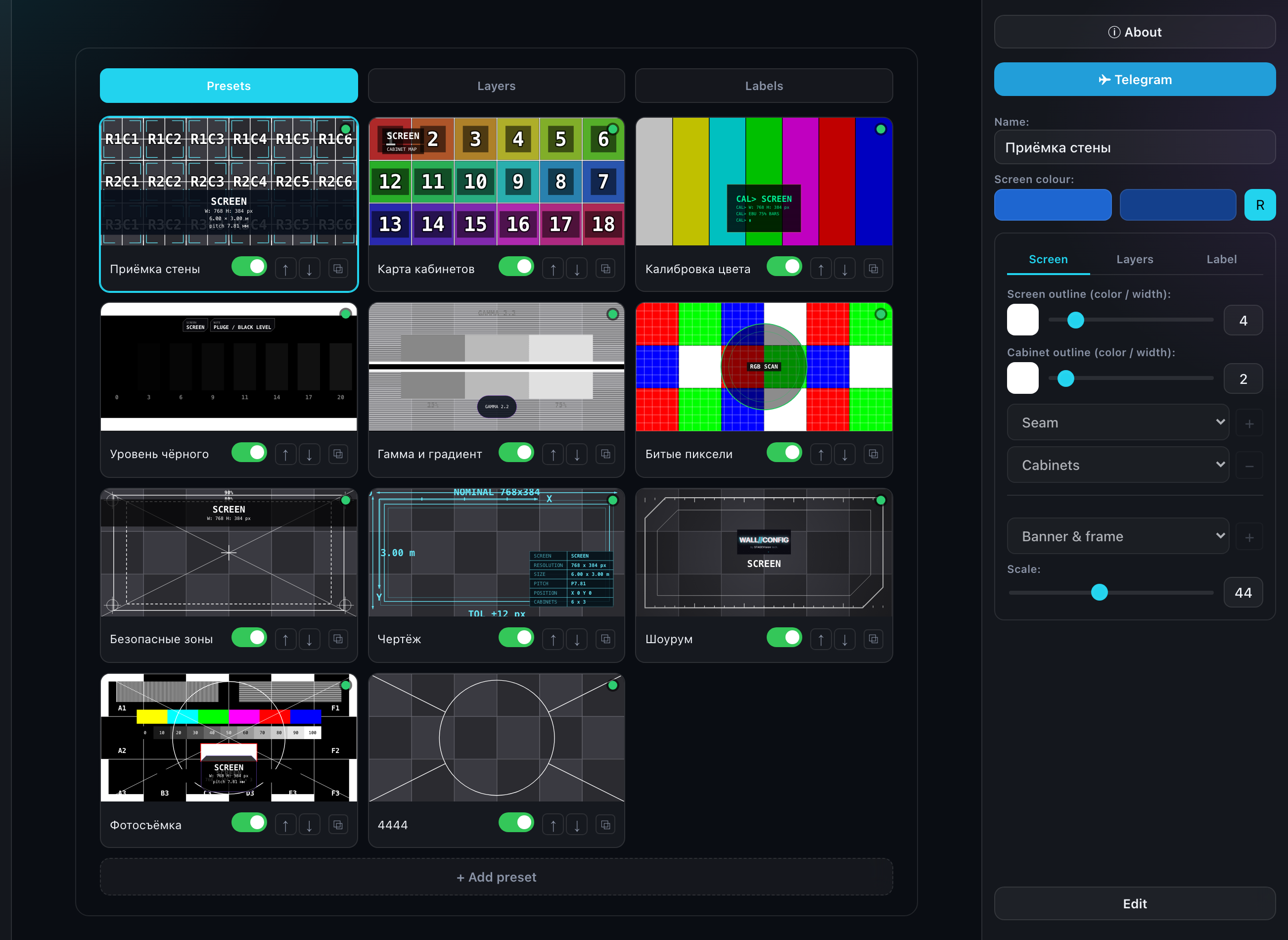
Screen colour and the R button
The preset name sits above the "Screen / Pattern / Label" tabs, and the two checker colours with a square R button are the first row inside the "Screen" tab, next to the outlines. In the editor that button picks a random pair; here it is a toggle:
- R on — the preset does not define the colour. The swatches dim and stop opening, and the screen keeps its own colour when the preset is applied;
- R off — the pair you preset is applied to the screen along with everything else.
Turn R on for presets that are about the drawing rather than the colour — "Safe areas", "Blueprint". The preset then lands without resetting the colour you picked.
Editing
- Click a preset tile — its panel opens on the right.
- Press "Edit" — the fields unlock.
- Change the contents and parameters — the tile on the left redraws with every edit.
- "Save" — or "Cancel" to put it back.
"Restore" appears on a modified server preset and returns it to the server version. The toggle on the tile hides a preset from the editor strip without deleting it.
A server preset cannot be deleted — the administrator created it for everyone. If you do not need it, switch it off. Only your own presets can be deleted.
Your own preset
The "Add preset" button below the list creates a new one with a single pattern; the rest is assembled on the "Screen" tab. Your presets are visible only to you and available in every project of yours.