Your first screen in 5 minutes
An end-to-end run for your first session: from an empty canvas to a picture of a video wall you can send to a client. No sign-up needed — all of this works as a guest.
Step 1. Pick a cabinet model
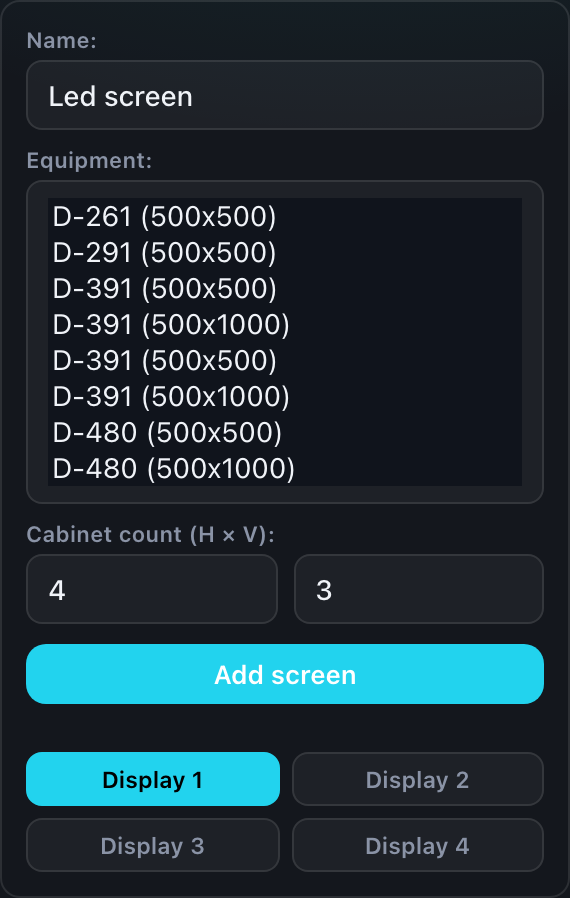
On the left, in the "Add screen" form, there is an equipment dropdown. It lists the cabinet models from your catalog; a guest gets a shared demo catalog.
The model determines everything else: the resolution of one cabinet, its physical size, pixel pitch, weight and power draw. That is why you pick it first.
Step 2. Set the layout
Enter how many cabinets go across and down. The resolution and physical size are recalculated for you.
If your settings use metres for size entry, width and height fields in metres appear alongside — the configurator picks the nearest whole number of cabinets itself.
Step 3. Add the screen to the canvas
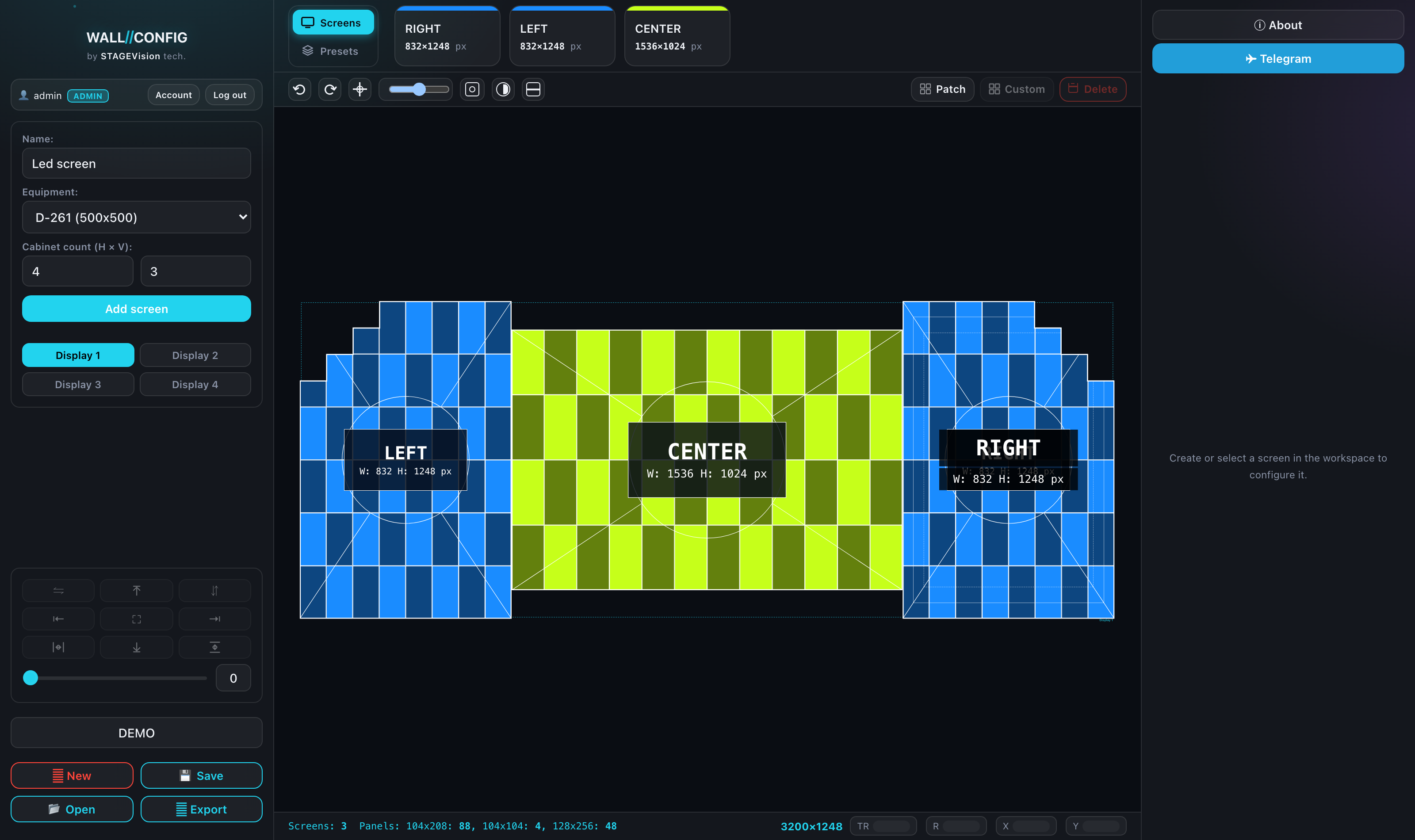
Click "Add screen". The screen appears in the card strip at the top and lands on the canvas.
From there you can drag the card onto the canvas with the mouse, or place another copy by double-clicking it — that is how a wall of several screens is built.
Step 4. Look around
- The mouse wheel zooms. The "fit" button (⌖) in the toolbar frames the composition, and Space with the left button held pans the canvas.
- The footer under the canvas holds the counters: how many screens, how many panels, the total resolution of the wall.
- Clicking a screen selects it, and its settings open on the right: name, colors, outlines, layers.
Step 5. Export a picture
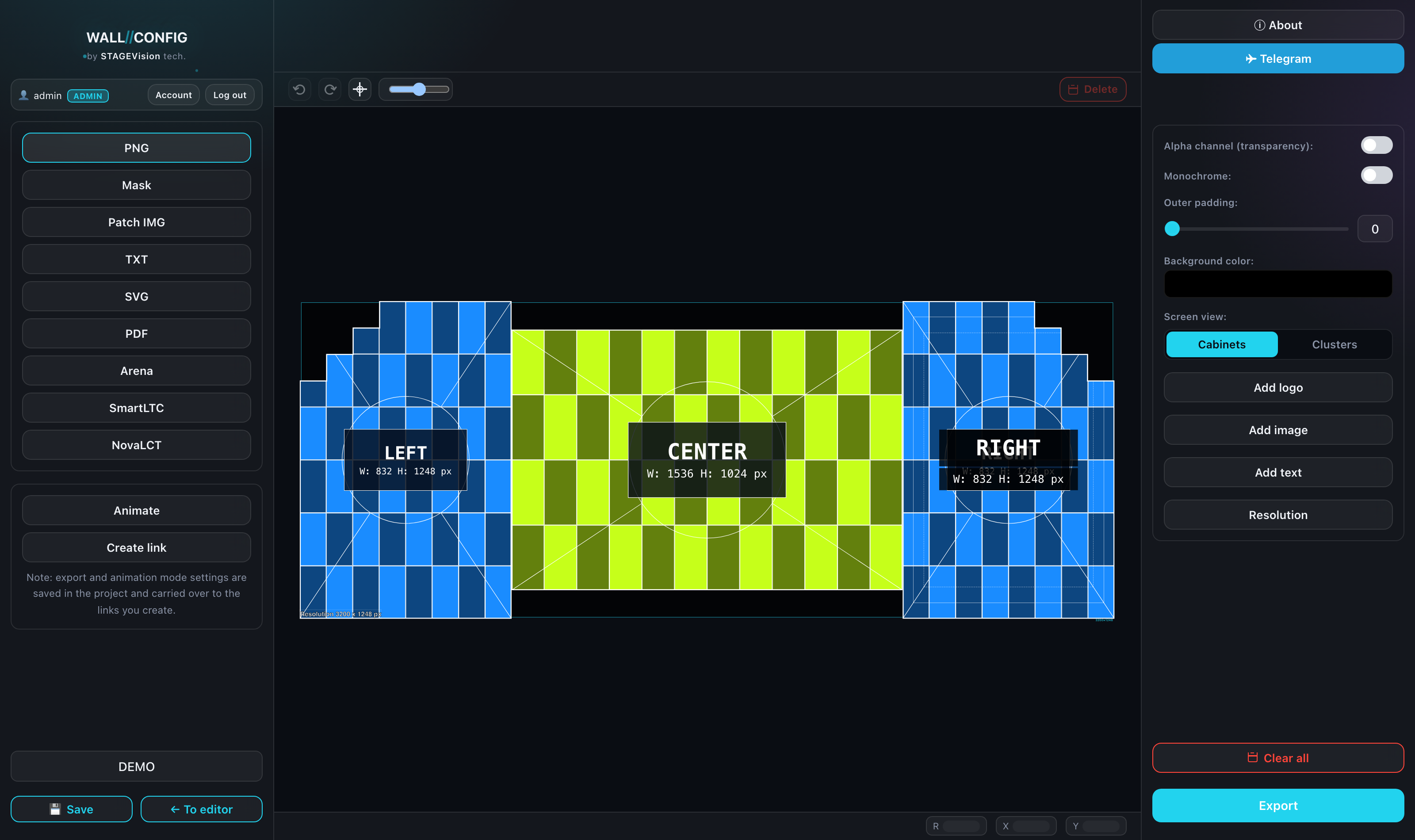
Click "Export" at the bottom of the left panel and choose the PNG format. The center immediately shows what will go into the file; on the right are the settings: transparent background, padding, monochrome, logo and captions on top of the picture.
The "Export" button downloads the file.
A project is not saved in guest mode. Close the tab and you build it again. For projects to live in your account, you need to sign up.
What next
- The editor interface — what every button does.
- Screens: creating and laying out — mixed screens, displays, copies.
- Layers — test patterns and labels on a screen.
- Patching — distributing cabinets across ports.
- Public links — how to show a project to a client.