Standards
The Standards section collects the limits the configurator judges your project by. Two subtabs, two different limits:
| Subtab | About | Where it applies |
|---|---|---|
| Card technologies | How many pixels a single Ethernet port can carry. | Data patching. |
| Power standards | How much power a single PowerCon line can carry. | Power patching. |
Both work by one rule: an administrator maintains the server rows, and you may edit them for yourself and add your own. Card technologies first, power standards below.
Card technologies
This subtab answers one question: how many pixels a single Ethernet port can carry. The answer decides whether patch mode considers your screen overloaded.
A table, not a number
Port capacity is not a constant of the card: it depends on the mode. So each technology is described by a table where rows are refresh rates (Hz), columns are color depths, and the cell holds the pixel ceiling per port.
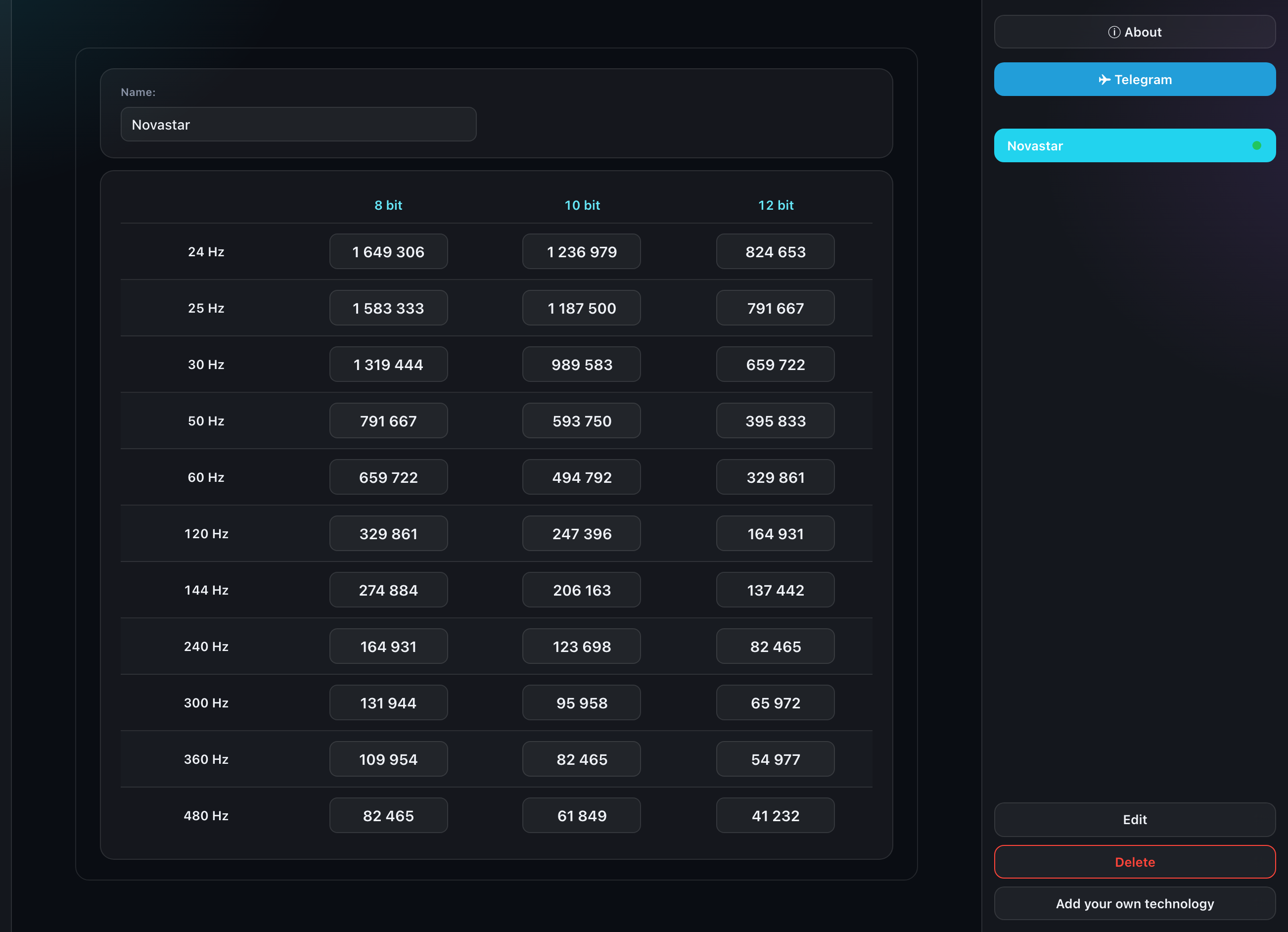
How this is applied when patching is covered in "Port load and card technologies".
Which technologies appear here
- server ones — those your cards actually use;
- your own — added by hand.
A server technology only enters the list once at least one of your cards references it. An empty list means no card has picked a technology yet.
The status dots
| Color | Meaning |
|---|---|
| Green | A server technology, unchanged |
| Accent | You changed its values, or it is your own |
Cells that have diverged from the current server value are highlighted separately — so you can see exactly what you changed.
Editing
"Edit" unlocks the table. In edit mode you can:
- type a value into a cell;
- add a row (a refresh rate) or a column (a color depth);
- select a header and delete that row or column;
- for your own technology, change its name.
A server technology cannot be renamed — only the refresh rates, color depths and capacity values are yours. The caps: up to 20 refresh rates and up to 5 color depths.
Nothing reaches the server until you press "Save": edits accumulate as a draft. Leaving the tab at that point asks for confirmation.
Revert and delete
- Revert — go back to the server values; it only appears on a server technology you changed;
- Delete — remove your own technology, or your edits to a server one.
A technology referenced by at least one of your cards cannot be deleted: the server refuses with a message. Change the technology on the card first.
The technology is picked on the card itself — see "Equipment catalog".
Power standards
A standard sets the ceiling of one PowerCon line — how many watts it may carry. The formula is simple: voltage × amps × (1 − reserve). That ceiling is what Power mode applies when it decides whether a line is overloaded.
Each row is one standard: a name, voltage (V), current (A), a reserve in percent and the resulting ceiling in watts. The ceiling recalculates itself — there is nothing to type in.
The list is combined, as with the technologies: the server standards plus yours. Three things are available:
- Editing a server row — your values sit over the server ones. An edited row is marked with a dot and can always be brought back with "Reset".
- "Add your own standard" — for when the one you need is not on the server at all. Your own row gets its own dot and can be deleted.
- Picking one in Power mode — the list there shows both the server rows with your edits and your own standards.
While the list holds no standard at all, the current limit is not applied — the calculation runs on the cabinets-per-power-cable norm alone. That is deliberate: a zero ceiling would mark every line overloaded at once.
The reserve percentage is where engineering caution goes. A 16 A standard with a 20 % reserve yields a ceiling at which the line is not running right at the breaker's limit.