Custom Library
This is where screens assembled cabinet by cabinet live — not rectangles but arbitrary shapes: letters, arches, ribbons, broken-up compositions.
Where presets come from
A preset is not created here but in the editor: in Custom Mode you build a shape out of cabinets and save it to the library. How that works is in "Custom Mode: a free-form screen".
Saving to the library takes a snapshot. Changing the screen in a project will not change the preset, and the other way round: there is no link between them.
The list and the panel on the right
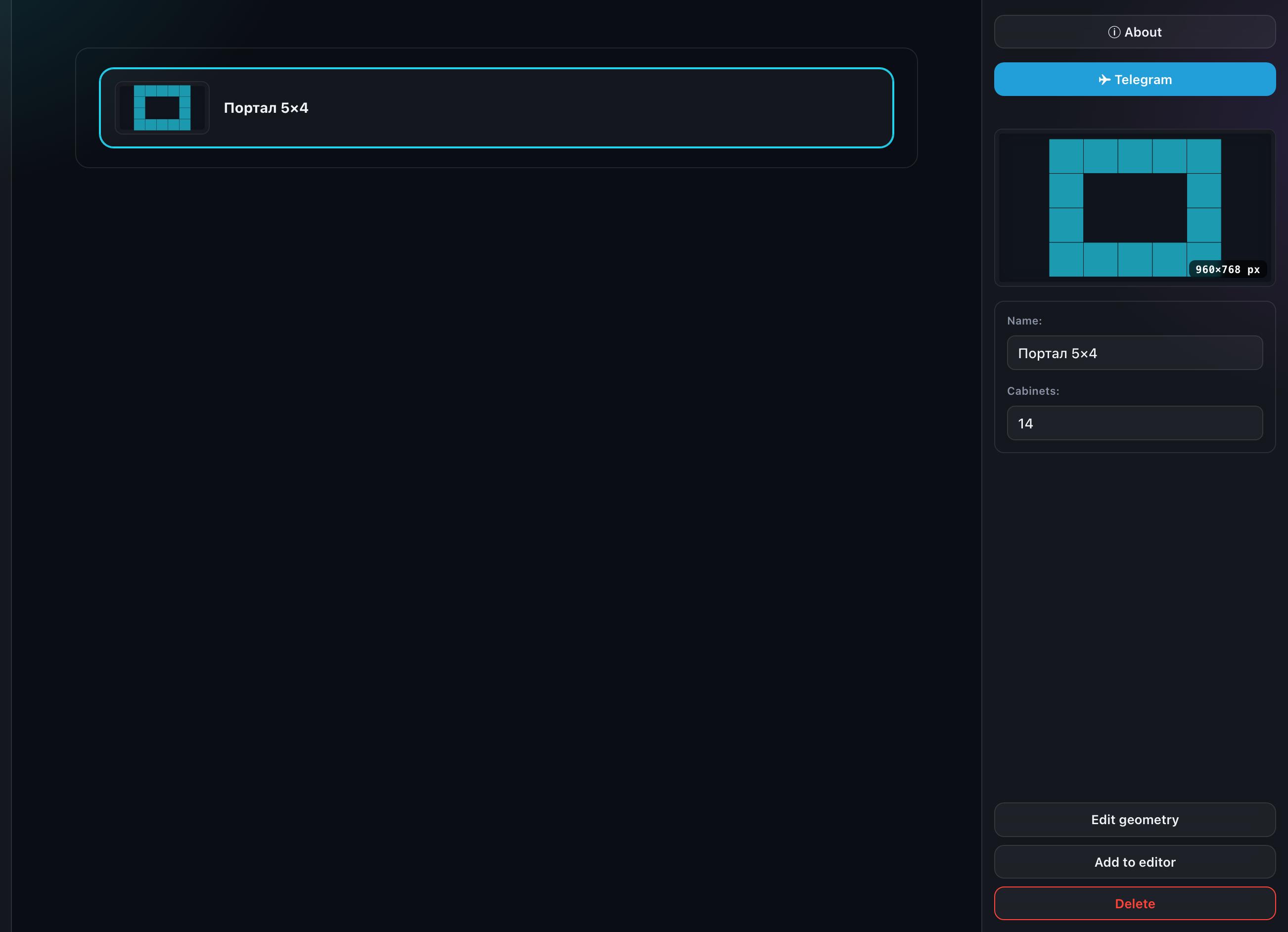
A card shows the silhouette of the shape and its name. The panel on the right holds:
- a preview of the shape and a resolution badge;
- the name — edited in the field, saved when you leave it;
- the number of cabinets in the shape;
- "Add to editor";
- "Edit geometry";
- "Duplicate";
- "Delete".
Cards are dragged by the ⠿ handle — the order in the list is yours and it is saved. That way the shapes you use often stay at the top instead of being hunted for in a list sorted by date.
Add to editor
Drops the shape into the project that is currently open in the editor, on top of everything else. The open project is neither lost nor replaced.
Edit geometry
Opens the shape in Custom Mode for editing. That is the only way to change the shape itself: your account only edits the name.
Duplicate
Makes a copy of the blueprint with the same geometry — it asks for a name and offers "… (2)". The copy goes first in the list. Handy when you need a variation on a shape you have already built: duplicate it and edit the copy, leaving the original intact.
Delete
Deleting a preset does not touch screens already placed in projects — they have long been on their own. Only the blueprint goes.
The limit
Usage is shown in the "Account" section.