Layers: patterns and labels
A layer is what gets drawn on top of a screen: a test pattern for checking the build, or a label with a caption. One screen can carry several layers at once, and you set the order between them.
Two kinds of layer
| Kind | What for |
|---|---|
| Pattern | A test image: grids, crosses, scales, fills. For checking geometry, the joins between cabinets, and screen calibration. |
| Label | Text over the screen: name, resolution, size in metres, pixel pitch, coordinates, free text. |
In detail: Patterns and Labels.
The base layers that are always there
Part of the styling is drawn independently of layers and configured separately:
- the cabinet checker — two alternating colors, so the split into cabinets is visible;
- the cabinet outline — the contour of every cabinet;
- the cluster grid — the split into modules, visible in "Clusters" view.
Their colors and widths are set on the "Screen" tab of the right panel — see Colors, outlines, monochrome.
Adding and removing a layer
- Select a screen — its panel opens on the right.
- Open the "Screen" tab: it holds two lists, patterns and labels.
- The "+" in the last row of a list adds another layer, "−" removes one.
- The settings of the selected layer are on the "Pattern" and "Label" tabs.
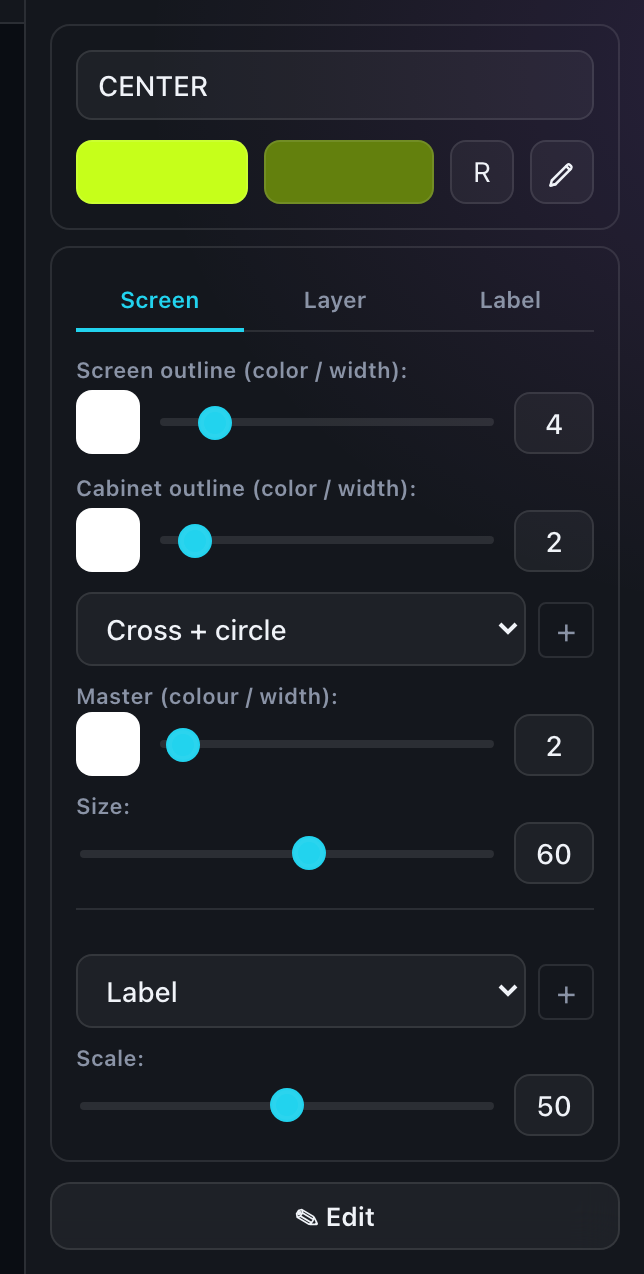
Layer order
Rows in a list can be dragged — that is how you set what is drawn over what. The top of the list is drawn first; the ones below it go on top.
If a label went missing under a pattern, do not touch the colors — just drag its row further down.
Scope
Every pattern has a scope: it is drawn either across the whole screen or on each cabinet separately. That is not a setting but a property of the pattern itself.
The difference matters: a cross with a circle across the whole screen checks the geometry of the entire wall — do the diagonals meet in the center, is the circle round. The same image repeated in every cabinet will not show that.
Units of measurement
Layer parameters use two different kinds of quantity, and they are easy to confuse:
Line widths and dash lengths are in panel pixels. Such a line does not scale with the screen: it is the same number of pixels thick on a 2×2 wall and on a 10×6 one. That is deliberate — a one-pixel line must stay a one-pixel line.
Radii, padding, type size, center offset are percentages of the screen size. Those follow the size.
Saving your own settings
Once a pattern or a label is set up the way you want, save it with the button at the bottom of the right panel. The settings go into your personal library and become available in any project.
Saved items are managed in your account, on the "Layers" tab.
How many layers you get
The number of patterns and labels on one screen is limited: one each for a guest, more for a registered user. An administrator can also disable individual layer types for everyone — those then do not appear in the list at all.