Presets
A preset is a ready-made bundle of screen appearance settings: layers, outlines and colour at once. Instead of assembling "wall acceptance" from a cabinet-number pattern, a seam layer and a caption every time, you pick a preset and click a screen.
A preset vs a layer
| Layer | Preset | |
|---|---|---|
| What it is | One drawing over the screen | Several layers plus outlines and colour |
| Where you pick it | The screen panel on the right | The strip above the canvas |
| How it is applied | Row by row | One click on a screen |
On layers themselves — "Layers: patterns and plates".
Applying a set
- To the left of the card strip, switch it from "Screens" to "Presets".
- Click a preset card — it highlights, the cursor becomes a crosshair.
- Click a screen on the canvas. Done.
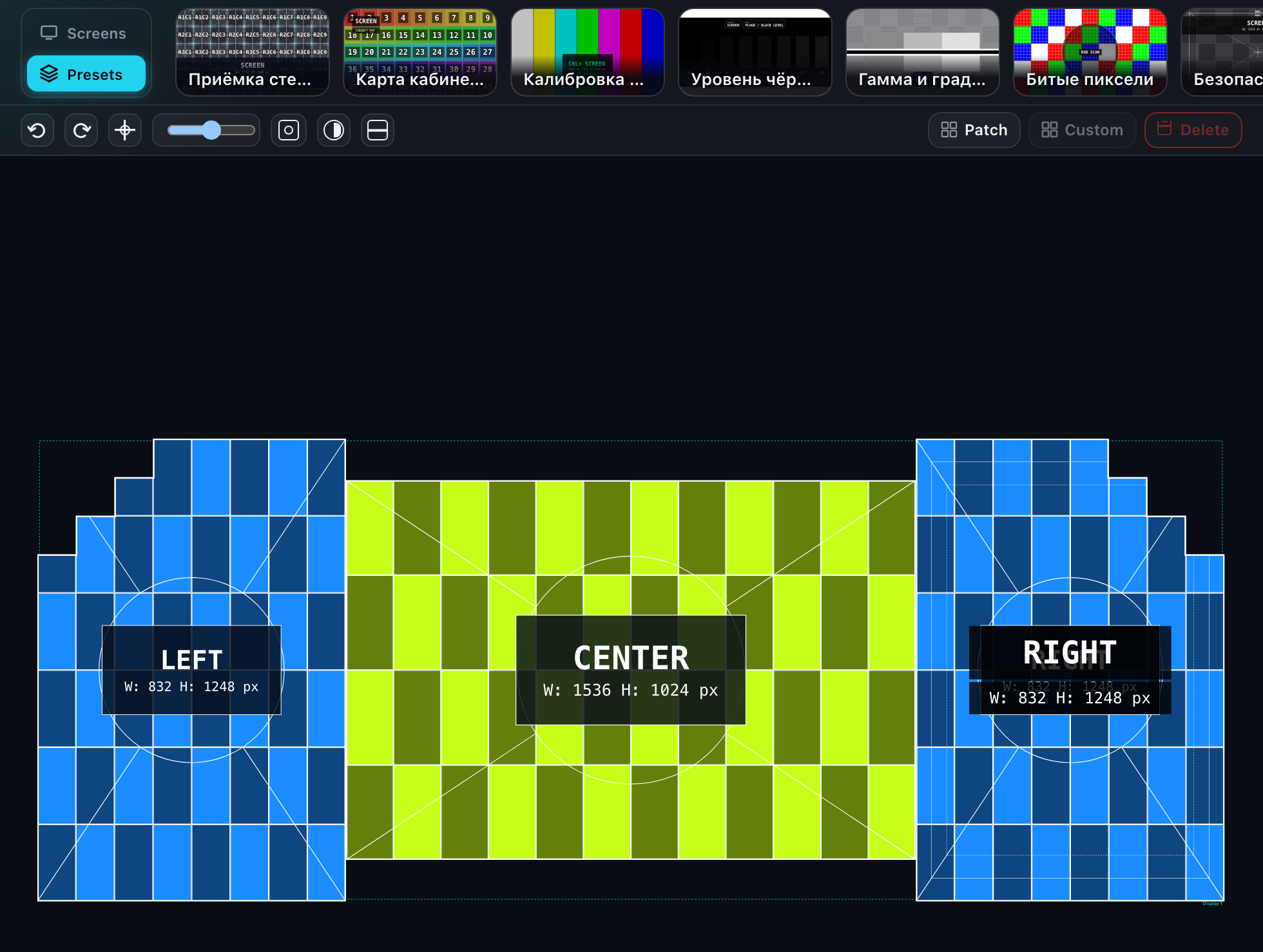
A double click on the card keeps the mode on: you can paint screen after screen until you press Esc. A single click applies the preset to one screen and switches itself off.
What happens to the screen
A preset replaces the screen appearance entirely rather than adding to it: the previous layers are removed and the preset layers take their place.
A preset applies to every screen of the same type — like any appearance edit in the editor. If two screens came from the same library card, both get the preset. Ctrl + Z undoes it.
Fields the preset does not define stay yours. A preset with "random colour" on, for instance, leaves the screen colour alone.
The ten built-in presets
| Preset | What for |
|---|---|
| Wall acceptance | Cabinet numbers, seams and a caption with dimensions — the shot that goes into the handover report |
| Cabinet map | Every cabinet in its own colour with continuous snake numbering — the assembly chart |
| Colour calibration | EBU broadcast bars — the way into white balance |
| Black level | Near-black steps: crushed shadows and raised black become visible |
| Gamma & gradient | Gamma patches against 2.2 plus a ramp for banding |
| Dead pixel scan | Pure R/G/B per cabinet — a dead subpixel shows up at once |
| Safe areas | 5 and 10 % frames with a centre cross: what will not be cropped |
| Blueprint | Dimensions in metres, axes and tolerance — for sign-off and paperwork |
| Showroom | Centred logo, HUD framing and a vignette — the wall works for the visitor |
| Photo shoot | An LED-style test card with a pixel grid — catches moiré and scan lines |
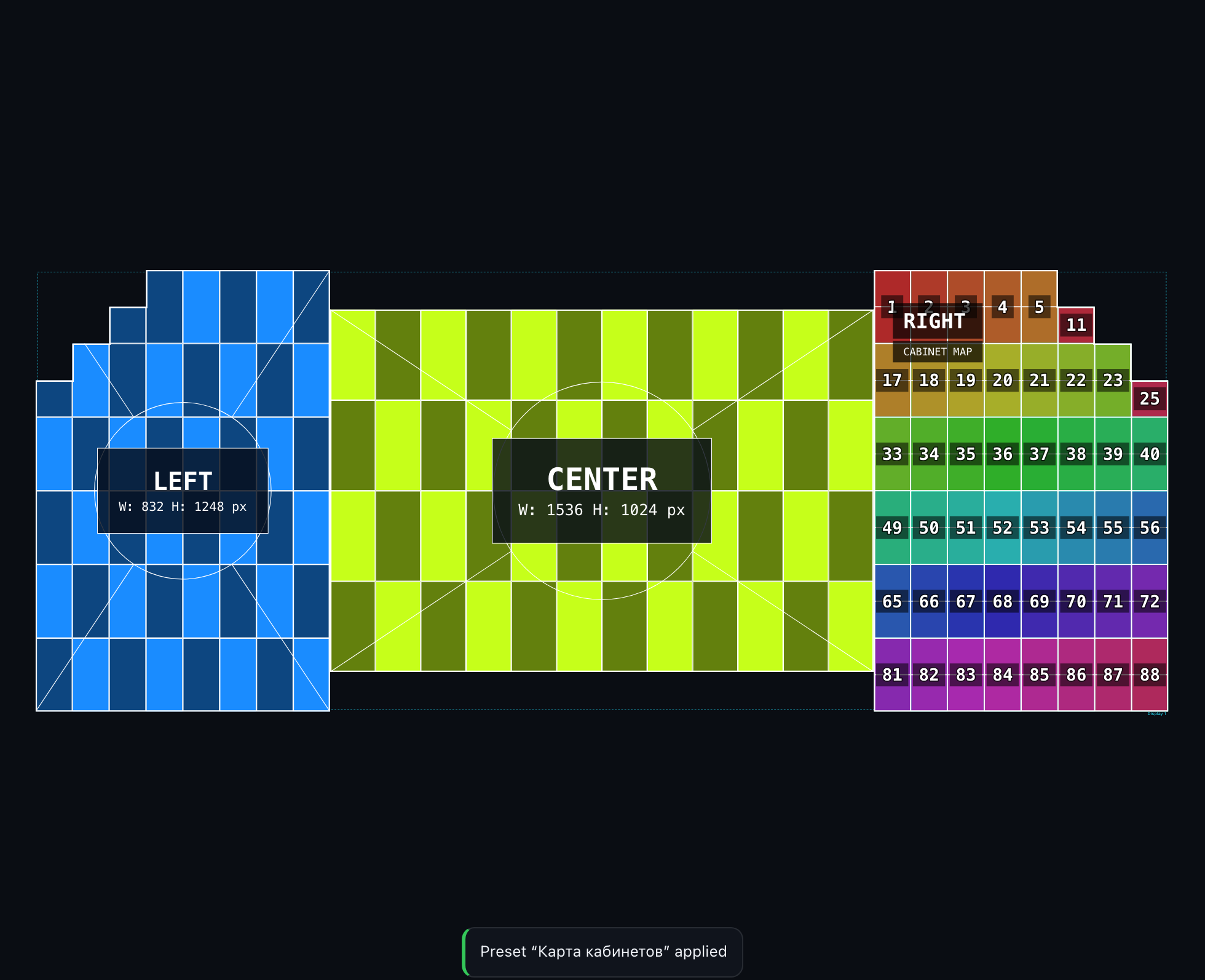
Your own presets
The list can be tailored: edit a built-in preset, switch off one you never use, or build your own. That happens in your account — "Presets" in the account.
Presets work without signing in — you can apply them straight away. Building your own or editing a built-in one needs an account: that is where the settings are stored.
Hiding the switch
If you never use presets — or use nothing else — the switch can be removed. In the account, Settings → Editor → "Editor strip shows" has three values: both, screens only, presets only. The last two drop the switch and keep the strip on one view. Details in "Settings".
What presets do not do
- they do not change hardware, size or cabinet layout — appearance only;
- they live in your account, so they are available in every project;
- the presets strip is not shown on a phone — wide screens only.