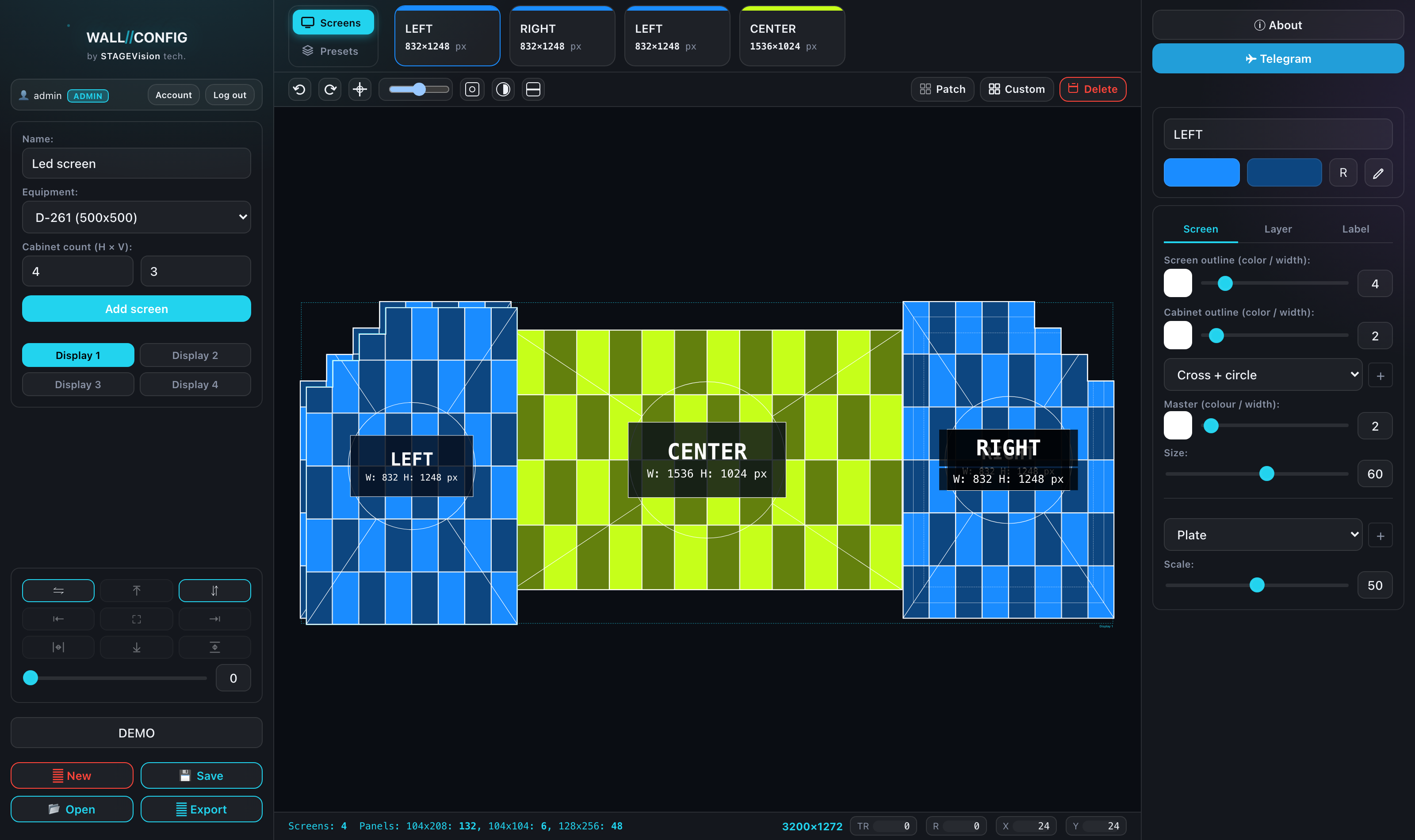
Screens: creating and laying out
A screen in WALL//CONFIG is a rectangle of cabinets of one model (or two, if the screen is mixed). Everything the configurator works out afterwards — size, weight, power, resolution — comes from the cabinet model you chose.
The equipment catalog
A cabinet model carries a set of characteristics:
| Characteristic | What it affects |
|---|---|
| Cabinet resolution | The total resolution of the wall and the load on a port when patching. |
| Physical size, mm | The size of the wall in metres and the ability to enter size in metres. |
| Pixel pitch | Shown in labels; derived from size and resolution. |
| Weight | The total weight of the structure in the spec sheet. |
| Power | Peak and average draw, scaled to the screen area. |
| Cluster size | The breakdown into modules in "Clusters" view. |
| Cabinets per power cord | Working out the number of power runs in the spec sheet. |
| Rating | Indoor or outdoor. |
A guest works with the shared demo catalog. Your own catalog lives in your account — see Equipment catalog.
Size in cabinets or in metres
By default the size is a number of cabinets across and down. If your application settings use metre entry, width and height fields appear — the configurator picks the nearest whole number of cabinets.
Metre fields are only available for models whose physical cabinet size is filled in. Without it there is nothing to convert from.
Mixed screens
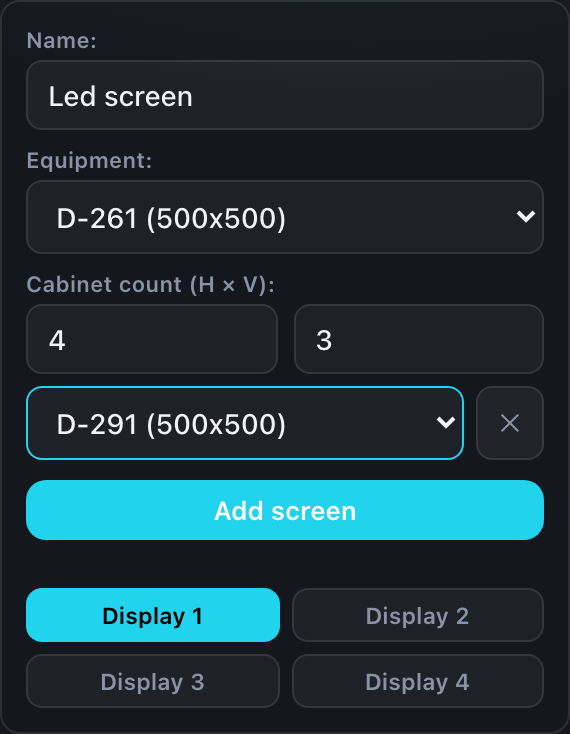
Sometimes the bottom of a screen needs a row of a different model — half-height cabinets, for instance. The form has an extra row for that.
There is no separate "add row" button: press +, Enter or Space right in the height field. It is not obvious, but it is deliberate — your hands stay on the numbers.
To remove a row, use the ✕ to the right of the model dropdown.
When you enter the size in metres, the row appears by itself: there is no cabinet-count field there, and the configurator fits a row to whatever height is left over that does not divide into whole cabinets. Nothing to press — the extra row shows up when it makes sense.
The model list in that row is ordered by how close the pixel pitch is to the main screen, so a model from the same series comes first. You do not have to hunt for it — pick 3.9 mm and 3.9 mm will be at the top.
Displays
A display is an independent composition inside one project. They matter when a venue has several separate walls: a stage, side screens, a banner.
- A single click on a number switches the active display.
- A double click renames a display.
- To move a screen between displays: Ctrl + X, switch display, Ctrl + V.
How many displays you get depends on your plan; how many of them to show is your own setting in the account Settings. When exactly one is available the switcher is hidden entirely.
Screen copies and the link to a type
One screen can stand on the canvas as several copies — four identical screens around a hall, say. Every copy is tied to one type: they share a cabinet model, layout, colors and layers.
The "Edit" button in the right panel changes the type, and therefore every copy of it at once. If you need an independent copy with different parameters, add a separate screen rather than copying an existing one.
A screen of an arbitrary, non-rectangular shape is built in a mode of its own — see CUSTOM mode.