The editor on a phone
The editor on a phone is the same canvas with the same project. Three things differ: the add-screen form lives in a slide-up panel, the canvas is driven by gestures, and the parameters of the selected screen are split across two tabs.
Adding a screen
The "Add" button at the bottom left opens the same form that occupies the left column on a computer: cabinet model, cabinet counts across and down, name, display.
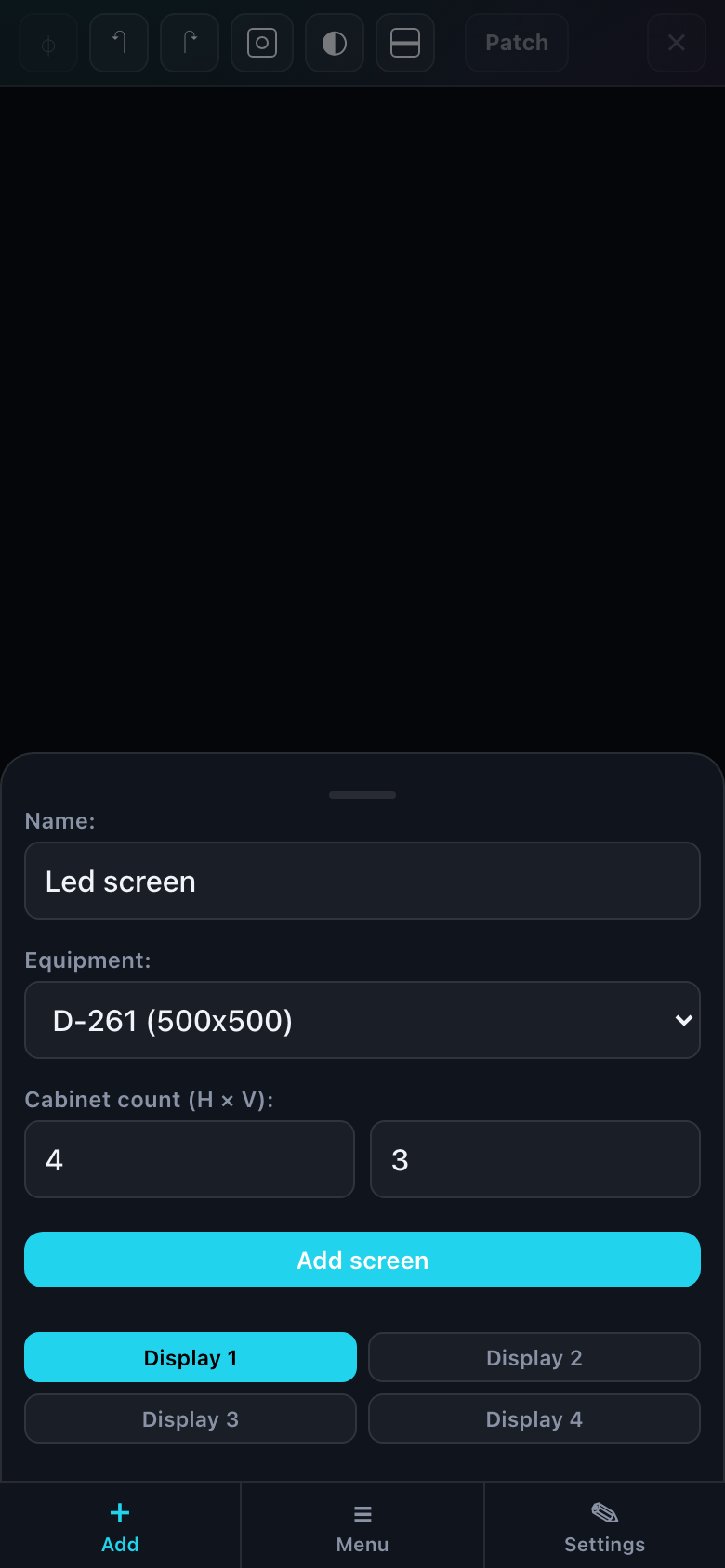
- Tap Add — the form slides up.
- Pick a cabinet model and set the layout.
- Press Add screen — the panel closes itself and the screen appears on the canvas.
What each field means is in "Screens: adding and parameters". This article is only about where that form lives on a phone.
Driving the canvas with your fingers
| Gesture | What it does |
|---|---|
| Tap a screen | Select it — its parameters appear in the "Settings" panel. |
| Tap empty space | Clear the selection. |
| Drag | Move the selected screen. Snapping to the grid and to neighbours still works. |
| Two-finger pinch | Zoom. Replaces the slider, which is not shown on a phone. |
| Long press on a screen | The screen context menu — CUSTOM mode is entered from there. |
You cannot marquee-select several screens on a phone — there is no touch gesture for it. That is why align and mirror, which act on a group of selected screens, are hidden on a narrow screen.
The toolbar
The top strip holds eight icon buttons. Left to right: fit to screen, undo, redo, snapping, monochrome, clusters, enter patching, and delete the selected screen.
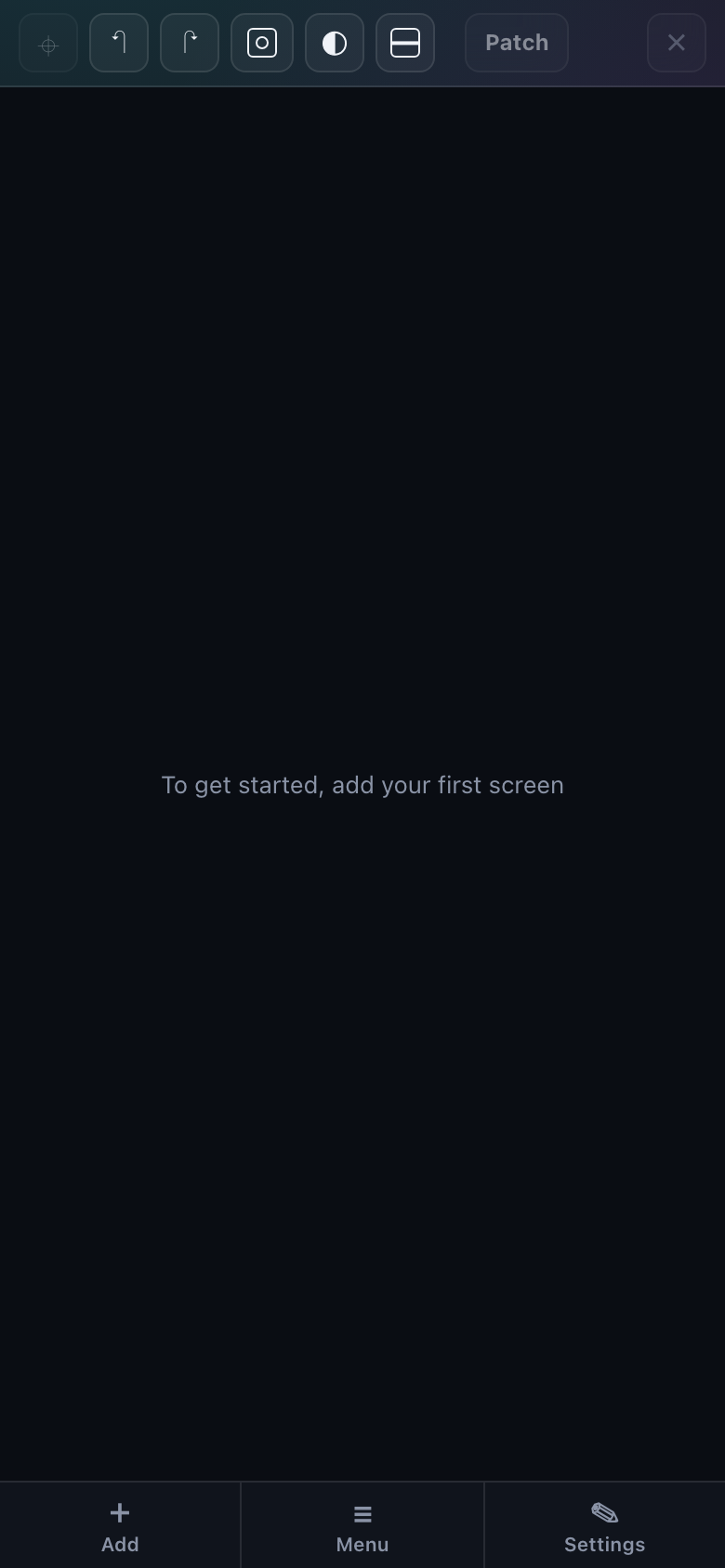
Undo and redo are available only through these buttons: there is no Ctrl + Z on a phone. A screen nudged by accident goes back with "Undo".
The selected screen panel
The "Settings" button opens the parameters of whichever screen is currently selected. On a phone they are split across two tabs, because they do not fit in one column.
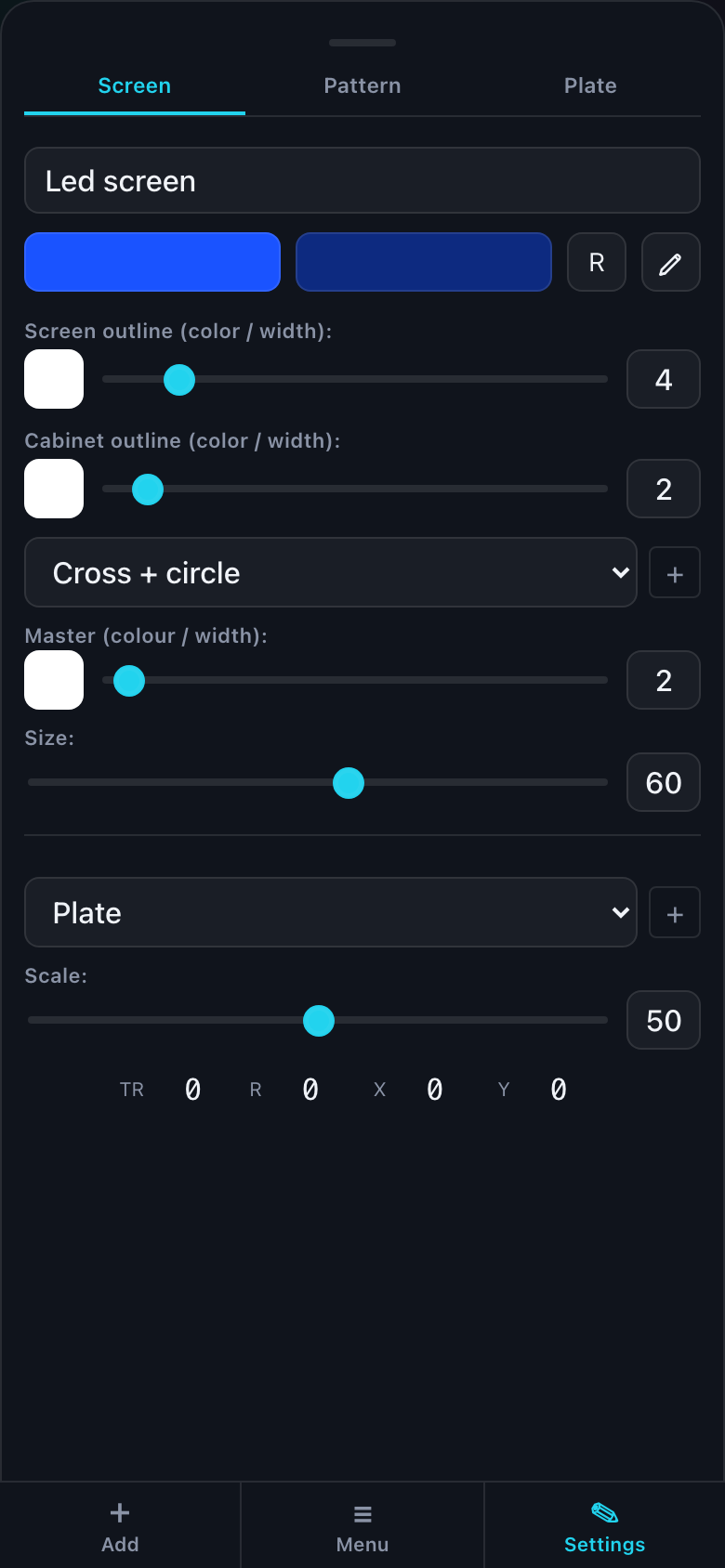
| Tab | What is inside |
|---|---|
| Name | The screen name, its colour and the X, Y, rotation fields — what lives in the right panel and the footer on a computer. |
| Settings | Pattern, plate, checker, outlines — the styling of what is drawn on the screen. |
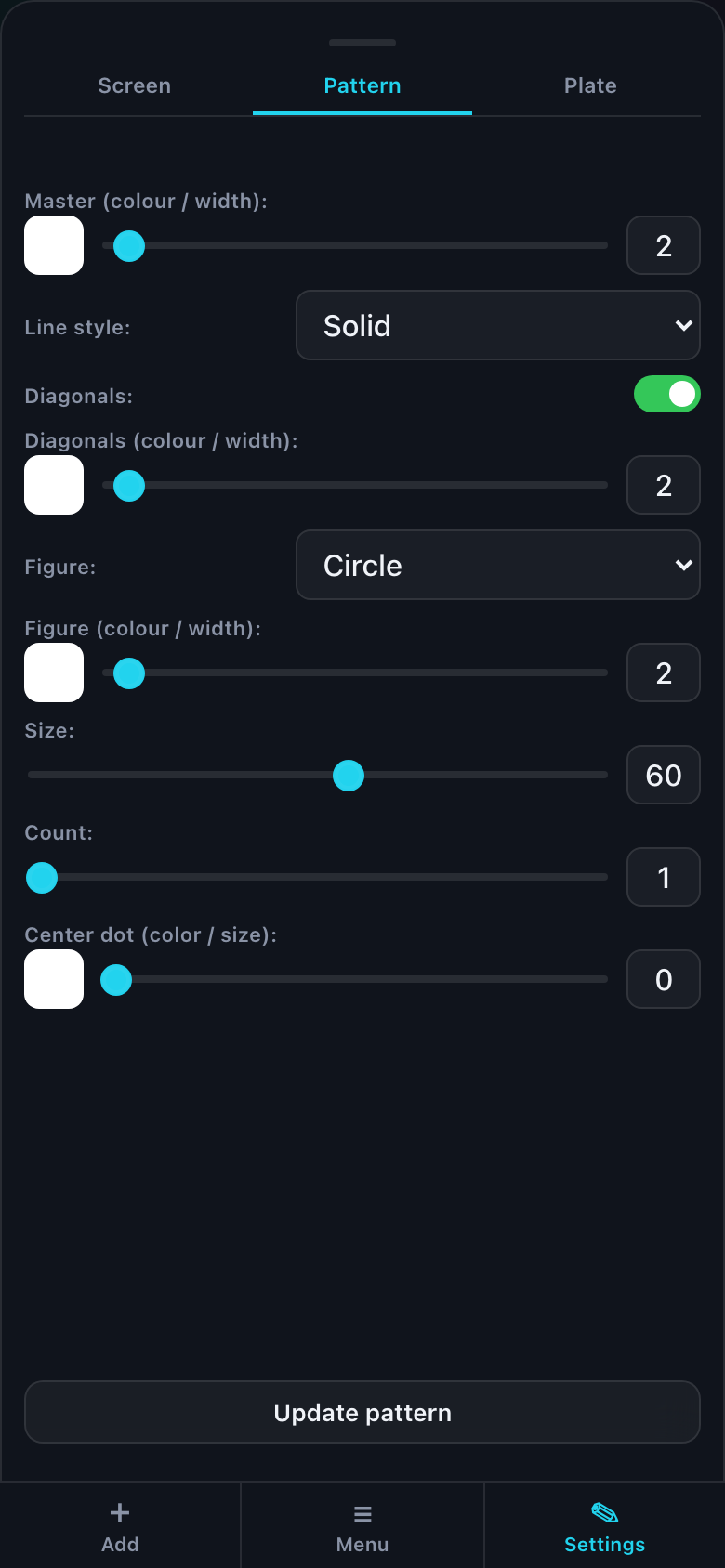
What each setting does is covered in "Screen layers", "Patterns" and "Plates".
Menu: saving and leaving
The "Menu" button in the middle collects everything that is not about the canvas itself: your account, the project name and four actions — New, Save, Open, Export.
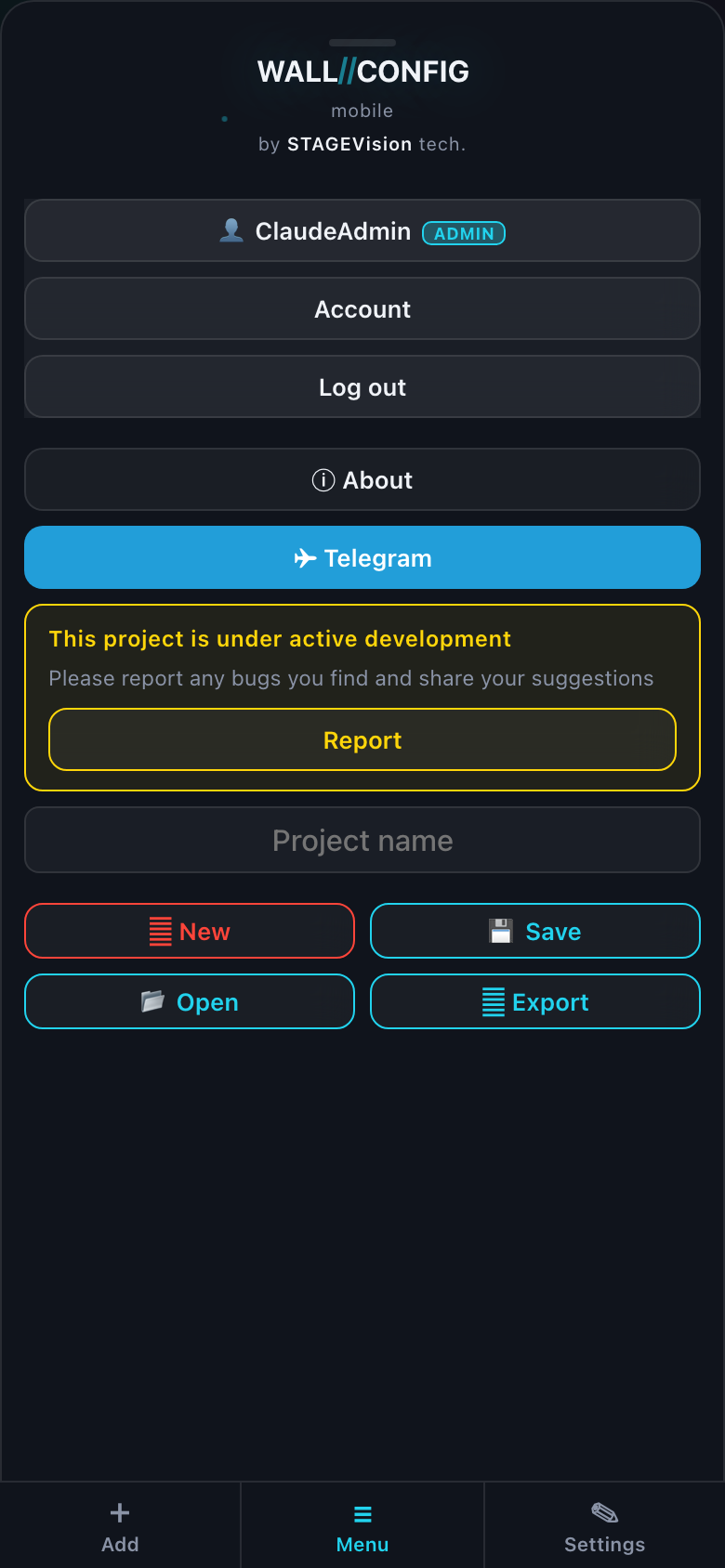
Saving a project requires signing in — same as on a computer. What works without it is described in "Guest and user".