Working on the canvas
The canvas behaves like a graphics editor: screens are selected, moved, snap to each other and align by their edges. Every way of doing that is collected here.
Selection
- Click a screen to select it.
- Shift + click adds a screen to the selection or removes it. The first such click picks up the already-selected screen, so you end up with a group of two.
- Marquee — drag with the left button across empty canvas. Everything inside the marquee is selected.
- Click empty space to clear the selection.
If the marquee caught exactly one screen you get an ordinary single selection rather than a group of one — that way you can edit its parameters straight away.
Moving and snapping
A screen is dragged with the mouse. How it snaps depends on whether the grid is on:
| Mode | Behaviour |
|---|---|
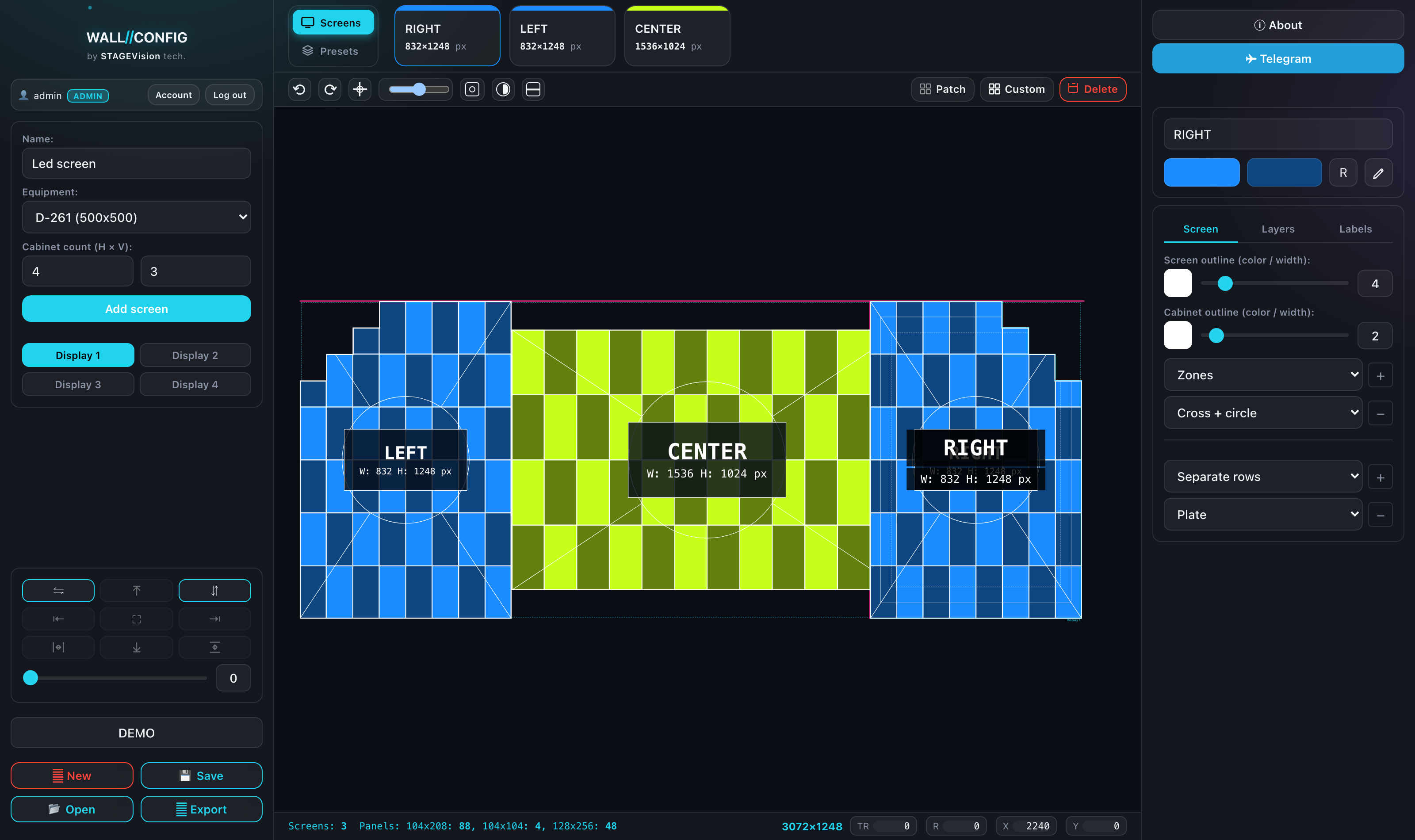
| Grid off | The magnet works: the screen is drawn to the edges and centers of neighbouring screens and to the center of the composition. Matches are shown as pink guides. |
| Grid on | The magnet to neighbours is disabled and the screen sits in grid nodes. What lands in a node is the corner you grabbed with the mouse, not always the top left one. |
A group of several screens moves as a whole, keeping their relative positions.
Zoom and panning
- Mouse wheel — zoom to the cursor.
- Space + left button or the middle mouse button — pan the canvas.
- On a touch screen: one finger on empty space pans, two fingers zoom.
- The ⌖ button fits the composition; double-clicking it fits every display.
Alignment and mirroring
What to do with a selected group next — packing the screens against one edge, spacing them evenly or mirroring a layout — is covered separately: "Aligning, distributing and mirroring". That article also explains why aligning works per row rather than putting everything on one line, and which operations the gap affects.
Copy and paste
| Keys | Action |
|---|---|
| Ctrl + C | Copy the selection |
| Ctrl + X | Cut — the main way to move a screen to another display |
| Ctrl + V | Paste — the copy lands at the cursor |
| Ctrl + D | Duplicate in place, with an offset |
The context menu
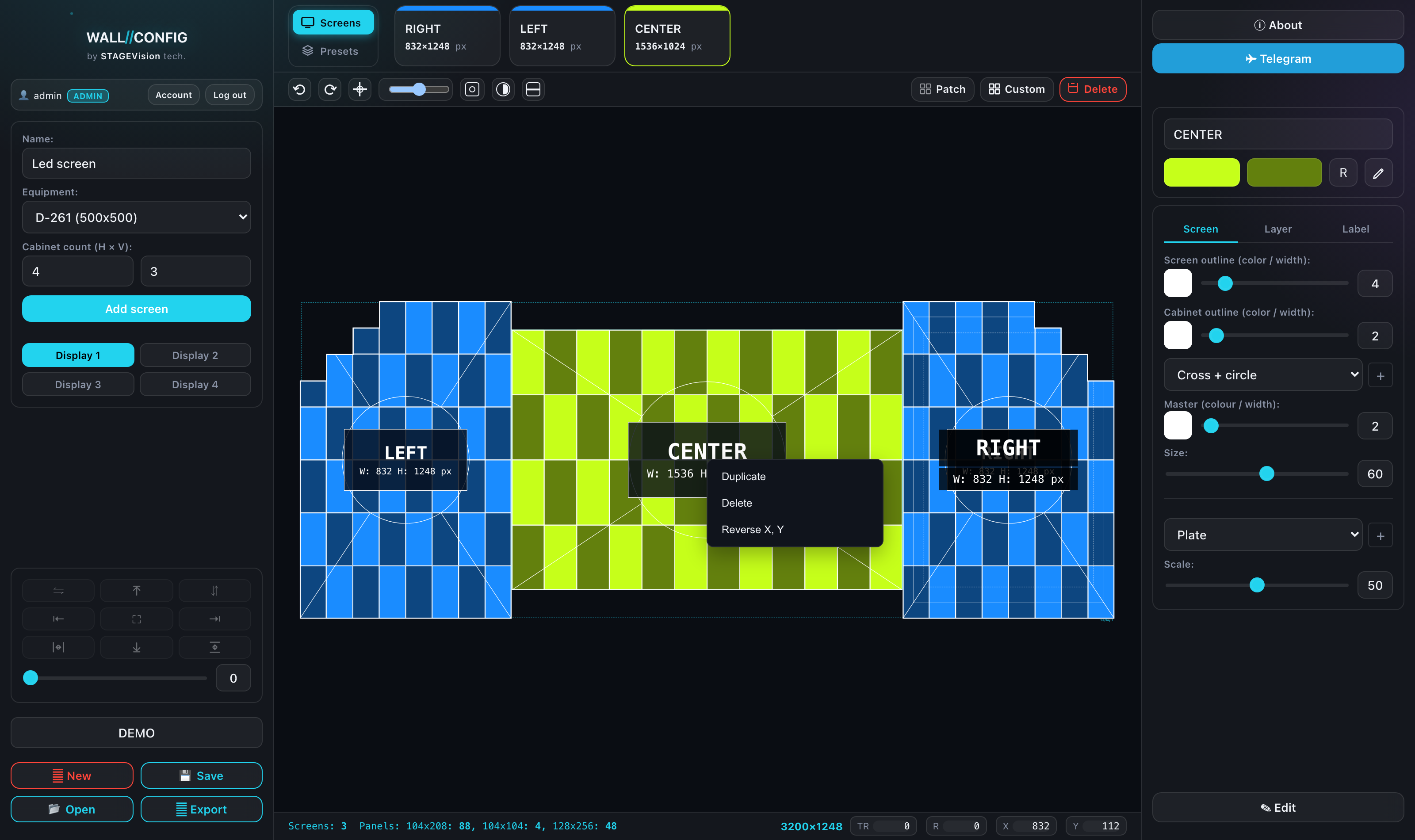
The right mouse button works anywhere on the canvas. If you miss a screen, the entries are greyed out. In the menu:
- Duplicate screen and Delete screen;
- Swap X, Y — swaps width and height in the label text. The screen itself is not rotated: this is for when a manufacturer states the resolution the other way round. Double-clicking the resolution line on the label does the same;
- Mirror vertically or horizontally — for screens of arbitrary shape.
On a touch screen the context menu opens with a long press (about half a second).
Undo and redo
Ctrl + Z undoes, Ctrl + Y or Ctrl + Shift + Z redoes. A run of held arrow keys counts as one action — undo returns the screen to where it set off from, not one step back.