Projects
Everything you have saved lives here. This section opens first — it is the way into your account.
The project list
Each project is a full-width card: a preview of the composition, the name and a meta line of "how many displays, how many screens". Clicking a card opens the project in the panel on the right.
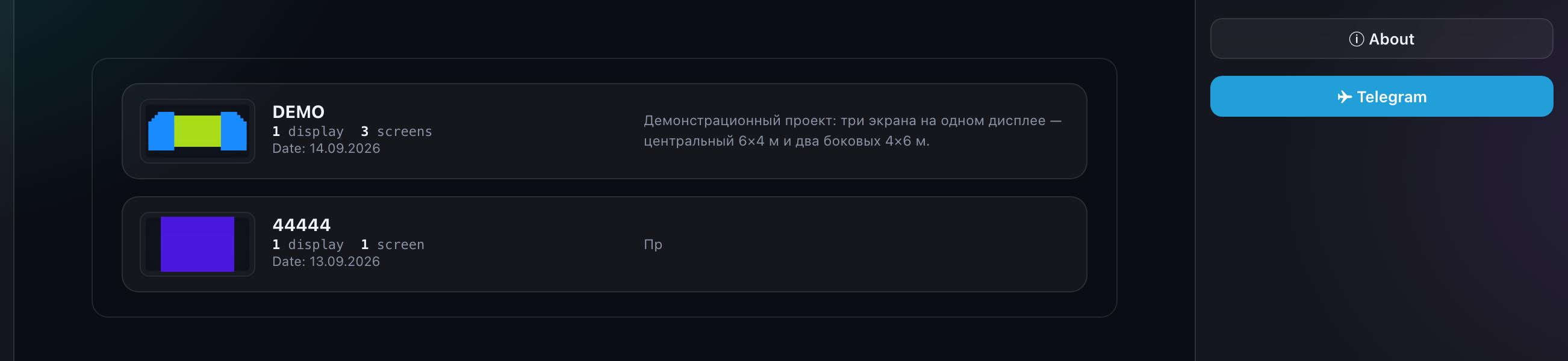
The preview is drawn from the saved project data rather than from a stored image, so it always matches the latest save.
The panel on the right
The panel for the selected project holds:
- a preview of the composition with a badge showing the final resolution;
- a display switcher — if the project spans more than one;
- the name — edited in place, saved when you leave the field;
- the list of links for this project;
- "Open" and "Delete".
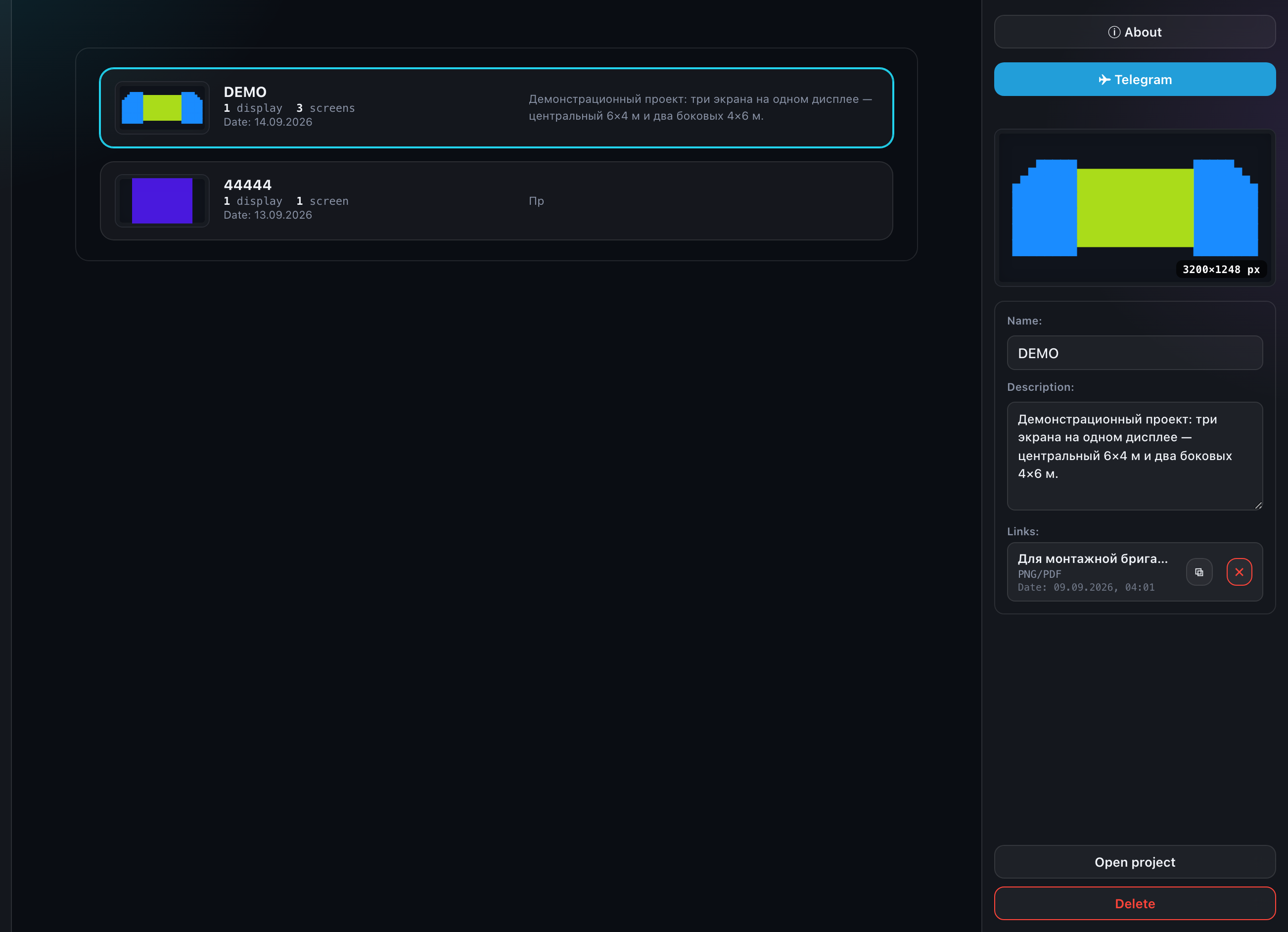
The display switcher only appears when the project really does span more than one — there is nothing to switch between otherwise. Every display switcher in the application behaves this way.
Open
Loads the project into the editor. Exactly the same as "Open" inside the editor, just closer to hand.
Delete
Deleting a project cannot be undone and takes all of its public links with it: they stop opening for everyone you sent them to. You are asked to confirm.
The project links
The panel lists every link belonging to this project — its address, the view counter and buttons to copy, reissue the token or delete it.
You cannot create a new link from here — that is done in the editor, in export mode. In your account links are only reviewed and configured.
Every link across all projects at once is in the "Links" section. How a link works and what the recipient sees is in the "Public link" chapter.
How many projects you can keep
How many projects you have saved and how many you may still add is shown in the "Account" section.