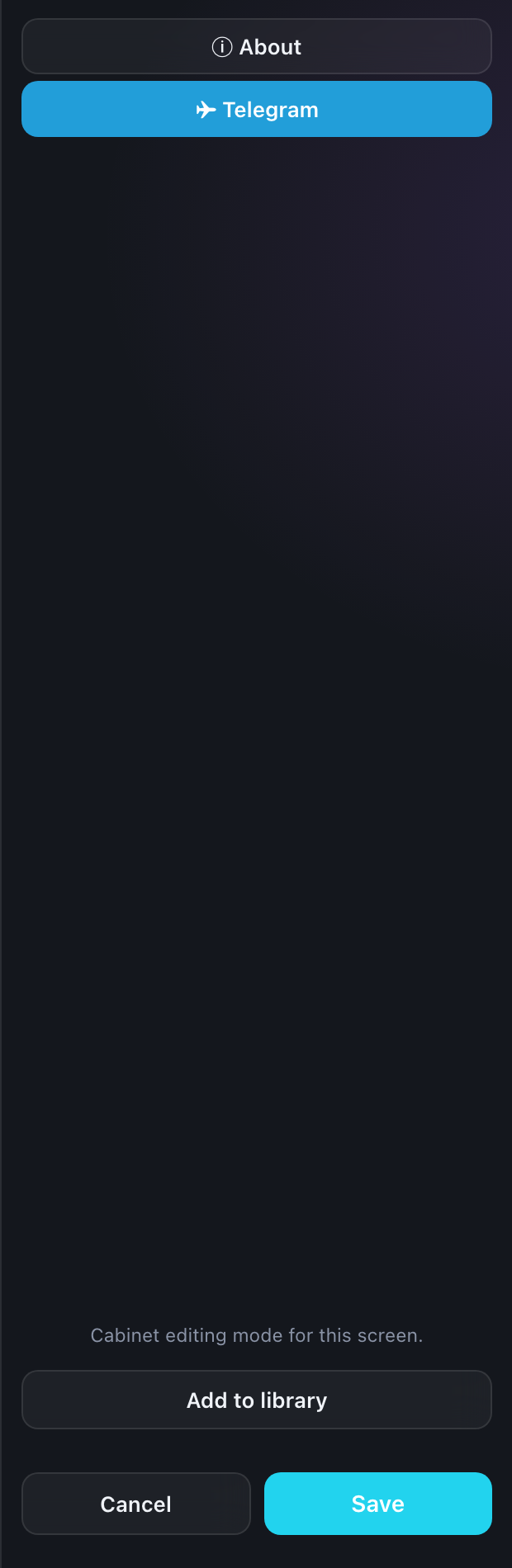
CUSTOM mode: screens of any shape
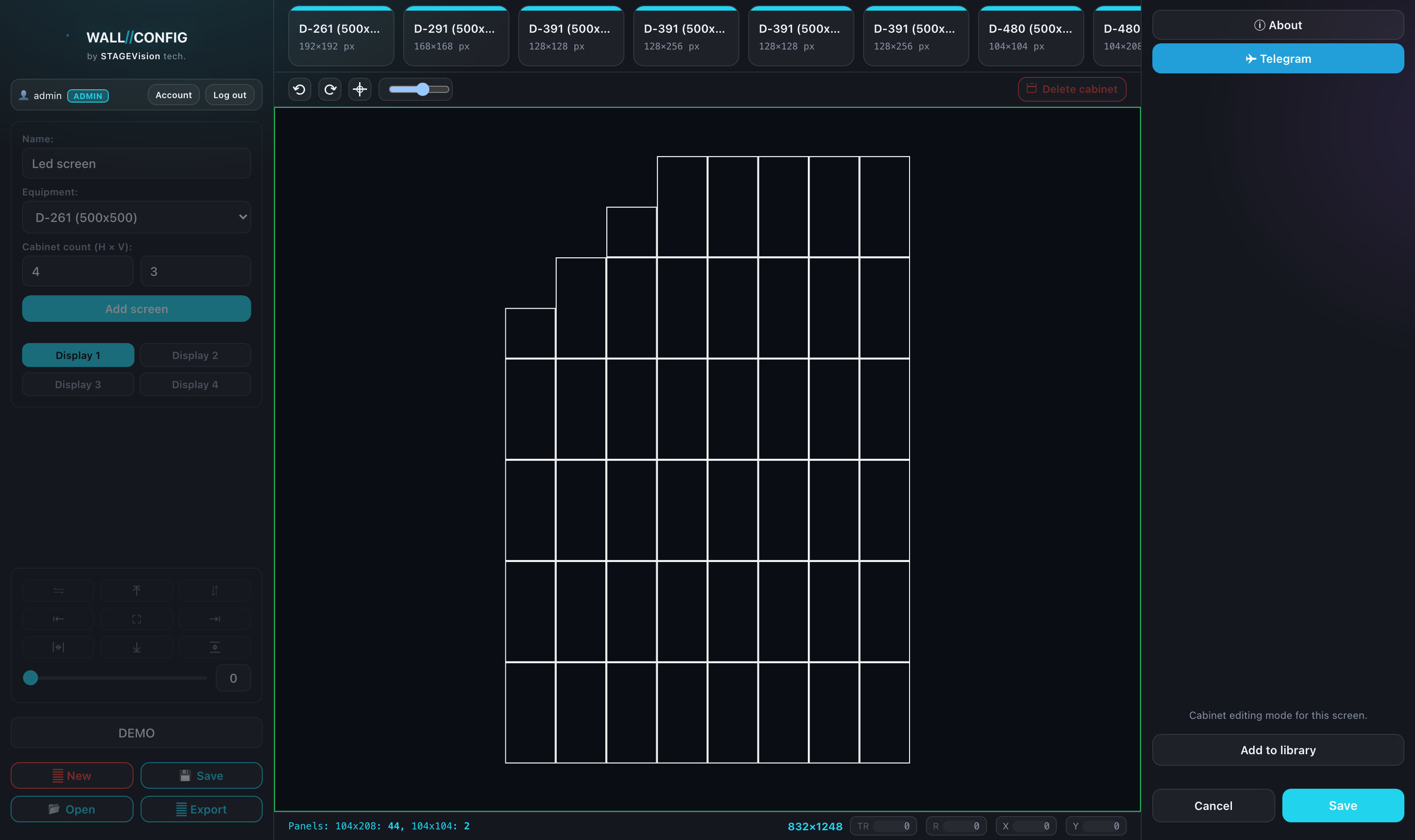
An ordinary screen is a rectangle. CUSTOM mode is for walls that are not: a letter, an arch, a staircase, a screen with a cut-out for a door or a column. In this mode you work with the individual cabinets inside a screen rather than the screen as a whole.
When you need it
- a complex shape — a corner, steps, a cross, a logo;
- a cut-out inside a rectangular wall — for an opening, a column, equipment;
- an unusual join between several blocks that make up one screen.
Entering and leaving
- Select the screen you want to reshape.
- Click Custom in the right-hand group of the toolbar. The button lights up and you land in a draft of that screen.
- Build the shape you need.
- Click Save to apply the shape to the screen, or Cancel to discard the draft.
Working with cabinets
- Add a cabinet by clicking an empty cell next to an existing one.
- Delete — select cabinets and press Delete, or use "Delete cabinets" in the toolbar.
- Select several — Shift + click, or drag a marquee.
- Copy and paste — Ctrl + C and Ctrl + V. The clipboard here is separate: copied cabinets never mix with screens copied in the ordinary mode.
The alignment block works on cabinets in this mode: you can align and distribute them exactly as you would screens on the canvas.
Cabinets are numbered like a calculator keypad: number one is the bottom left. That matters when you check the layout against an installation drawing.
Its own undo history
The mode keeps a separate history: Ctrl + Z undoes what you did to the cabinets, not the last change to the project. The "Cancel" button on the way out discards the entire draft at once.
Saving a shape to your library
"Add to library" saves the assembled shape as a layout in your personal library — you can then drop it into any project without building it again.
The personal library needs an account. A guest sees the button but cannot use it: building a screen shape works without signing up, saving it to your own library does not.
The library stores a snapshot taken at the moment you saved. If you later change the original screen, the library keeps the old layout — it does not follow along.
Saved layouts are managed in your account — see Custom Library.