Port load and card technologies
One Ethernet port of a processing card carries a limited number of pixels. That is a physical limit of data transmission, and it is what decides how many ports a wall has to be split across. The configurator knows these limits and warns you when a port is overloaded.
What the limit depends on
Port capacity is not a property of the card — it is the result of three values at once:
- Technology — Novastar, Novastar 5G, Colorlight, Linsn, Brompton. Taken from the card model in your catalog.
- Refresh rate — how many times per second the picture is refreshed. The higher it is, the fewer pixels fit through a port.
- Color depth — 8, 10 or 12 bits. Every extra bit per channel is extra data, and the limit drops.
An example from the Novastar table: at 24 Hz a port carries about 1,650,000 pixels at 8 bits, 1,237,000 at 10 bits and 825,000 at 12. The same card — only the color depth differs, and it is half as many cabinets per port.
Hence a practical rule: if the wall does not fit the ports you have, it is worth checking whether the project really needs 12 bits and a high refresh rate before buying another card.
How it looks while patching
In patch mode every card is given a refresh rate and a color depth — they are what picks the row in the limits table. As you assign cabinets the load adds up and is compared against the limit found:
- an overloaded port is highlighted;
- the bottom panel shows a load table across every port;
- the panel header reads either "ok" or the number of overloaded ports;
- the automatic traversal marquee trims the chain itself: surplus cabinets simply do not go in.
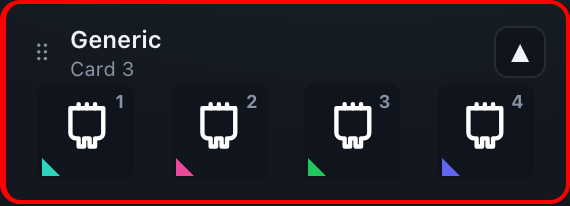
The load is measured by the bounding frame, not by the sum of the cabinet areas. If one port's screens sit apart on the wall, the empty space between them falls inside the frame and loads the port too. That is not a miscalculation — it is how data transmission works.
When there is no check at all
If a card has no refresh rate or color depth selected, no row is found in the table and the port is treated as unverifiable: overload is not flagged on it. The same happens when the cell for that particular combination of technology, rate and depth is empty.
This is deliberate: a blank cell must not retroactively declare every port of that technology overloaded. But silence here does not mean "all good" either — it means "there is nothing to check against".
Your own capacity table
The limits are set by an administrator in a shared table, and the configurator reads them from there for every card. If your cards behave differently in reality — firmware, revision, your own measurements on site — the values can be overridden.
Account → the "Standards" section → the "Card technologies" subtab. The list holds only the technologies your own processing cards actually use, plus the ones you created. In the center is a "refresh rate × color depth" grid whose cells are pixels per port.
- "Edit" on a server technology creates your own personal copy — it never touches the server row and does not affect anyone else.
- Changed cells are highlighted, so you can see exactly what you edited.
- "Reset to server values" drops your copy and brings the shared values back.
- You can also create a technology of your own.
Your table is a snapshot of the server one taken when you first overrode something, not a live link to it. If the administrator later changes the shared values, yours keep the old ones; a cell that has diverged from the current server value is highlighted in the grid.
A short checklist
- Make sure the card has a refresh rate and a color depth — without them overload is not checked.
- Patch the wall and look at the port load panel.
- A port is overloaded — shorten the chain, lower the color depth or the refresh rate, or add a card.
- Enter your own measured limits in the account: the "Standards" section → "Card technologies".