Processing cards
A processing card is the signal source for a group of cabinets. Until the project has at least one card there is nothing to patch: the ports come from it.
Processing cards
A card is a processor or a sending card from your catalog. Add one with "+ Add card" in the left panel.
Each card has:
- a name and a comment — how it appears in the scheme and in exports;
- a resolution — from a preset (HD, Full HD, 2K, 4K) or entered by hand;
- a refresh rate — only the modes this card actually supports;
- a color depth;
- a frame color — the card outlines its own cabinets on the canvas with it, so you can see what belongs to what;
- port labels — on a separate tab, one line per port.
The number of ports comes from the card model in the catalog.
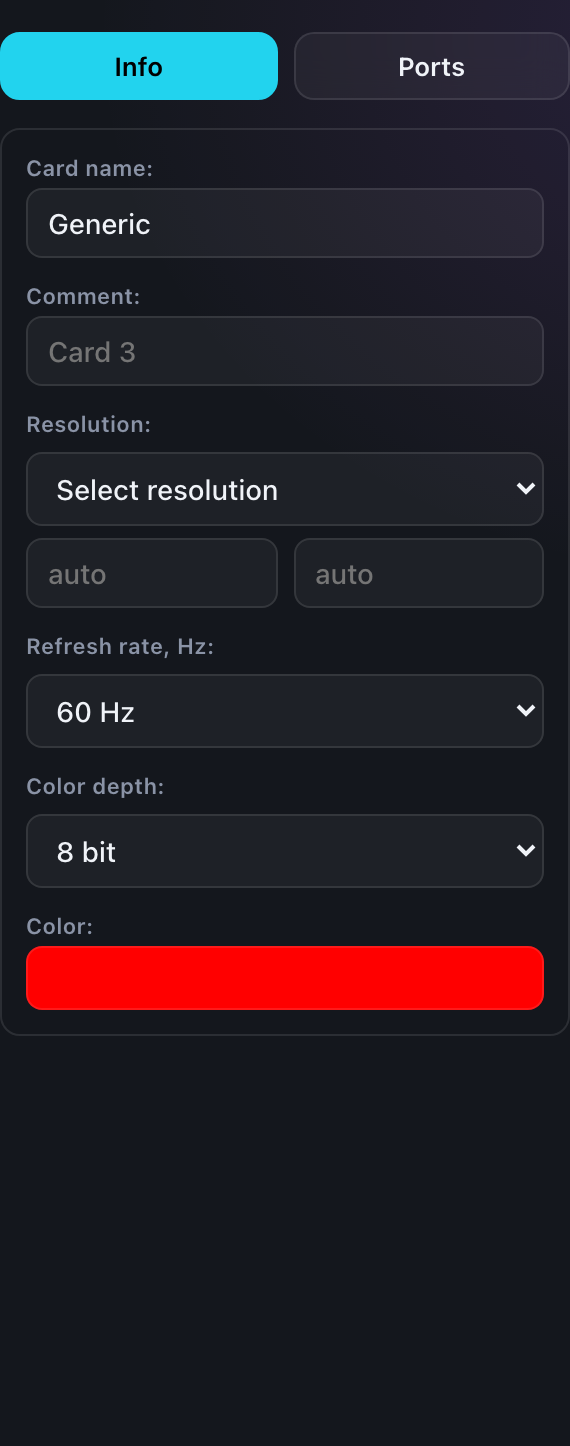
The two tabs of the form
The card parameters are split across two tabs in the right panel:
| Tab | What it holds |
|---|---|
| Info | Name, comment, resolution, refresh rate, color depth and frame color — everything describing the card itself. |
| Ports | One row per port: its own caption, which carries over into the diagram and the export. |
Port captions matter when the sockets on site are labelled in their own way rather than by number — "stage left", "stalls". The diagram then carries the same wording as the hardware.
Why refresh rate and color depth matter beyond quality
That pair picks the row in the capacity table and therefore decides how many cabinets fit on one port. The higher the refresh rate and the color depth, the fewer pixels a port carries — and the more cards the same wall needs. Covered in detail in "Port capacity".
While the refresh rate or color depth is unset, there is nothing to check the load against: overload on that card's ports is not flagged at all. Silence here means "nothing to check with", not "all good".
Card order
Cards in the left panel can be dragged by the dotted grip — the order feeds their numbering in exports. A card is removed with the "Delete card" button at the bottom of its form.
Deleting a card takes its chains with it: cabinets assigned to its ports become free again.