Link settings
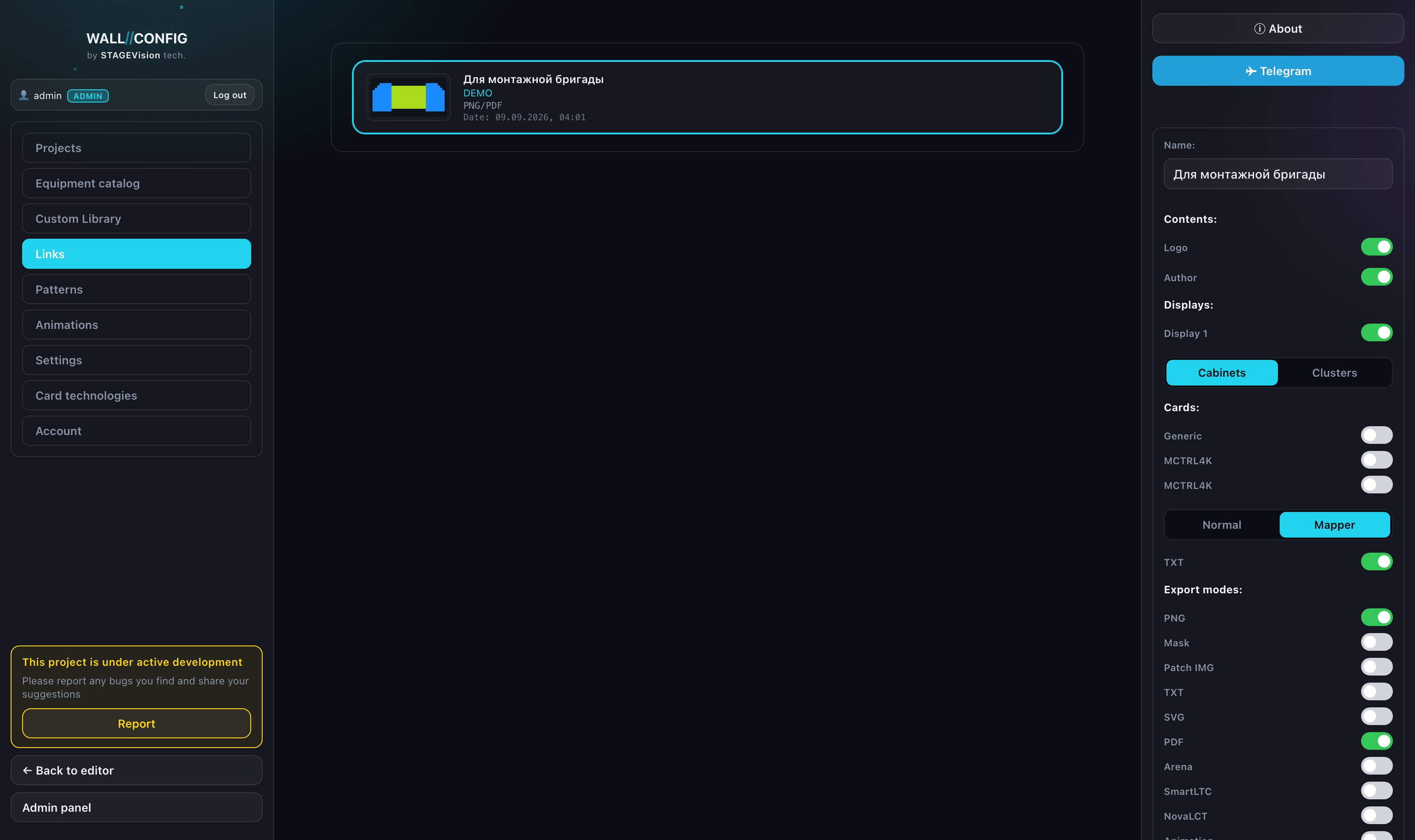
The settings decide what the recipient sees and what they can download. They can be changed after sending too — the address does not change.
What can be configured
| Setting | What it does |
|---|---|
| Link name | So you can tell your links apart. The recipient never sees it. |
| View only | Forbids downloading entirely, whatever the format list says. |
| Logo | Whether your logo appears in the page header. |
| Author byline | Whether the author name appears in the footer. |
| Displays | Which of the project's displays are open to the recipient. |
| Processing cards | Which cards are visible. If at least one is ticked, patch viewing opens. |
| Specification | Whether its text is shown right on the page. |
| Cluster mode | Whether the recipient may switch clusters. |
| Mapper mode | Whether the patch map can be viewed. |
| Export formats | What exactly the recipient can download. |
Formats
The format list works as a permission, not as a ban:
- nothing ticked — nothing can be downloaded;
- some ticked — only those are available;
- all ticked — everything available to you is available.
An empty list is a ban, not "unrestricted". The two-gates rule applies: link settings can only narrow your own rights.
Displays and cards
Displays and cards are ticked in a list: the recipient sees exactly what is ticked. That helps when one part of a project is meant for the client and another for the crew: make two links with different sets. What displays are is covered in "Screens: creating and laying out", cards in "Patching".
Where to change them
The settings are edited in your account, in the "Links" section — the block unfolds right inside the link panel. Changes take effect immediately, including for people you already sent the link to.